Autopsy Investigations & Office Document Metadata
Building cases in Autopsy — file extraction, keyword and regex searches, hash set matching — then reading who really wrote and edited Office files from their internal XML.
Overview
Fourth post in the Digital Forensics Labs series. The earlier posts worked mostly with individual tools; Autopsy brings them together into a case — ingest an image once, then search, filter, and tag across everything in it.
- Recovering files from an image
- Finding evidence with keyword, regex, and file-type searches
- Hash set matching to flag known files automatically
- Office document metadata — authors and edit history straight from the XML
All analysis was performed on course-provided evidence images inside an isolated lab VM.
Step 1: Creating a Case and Extracting a File
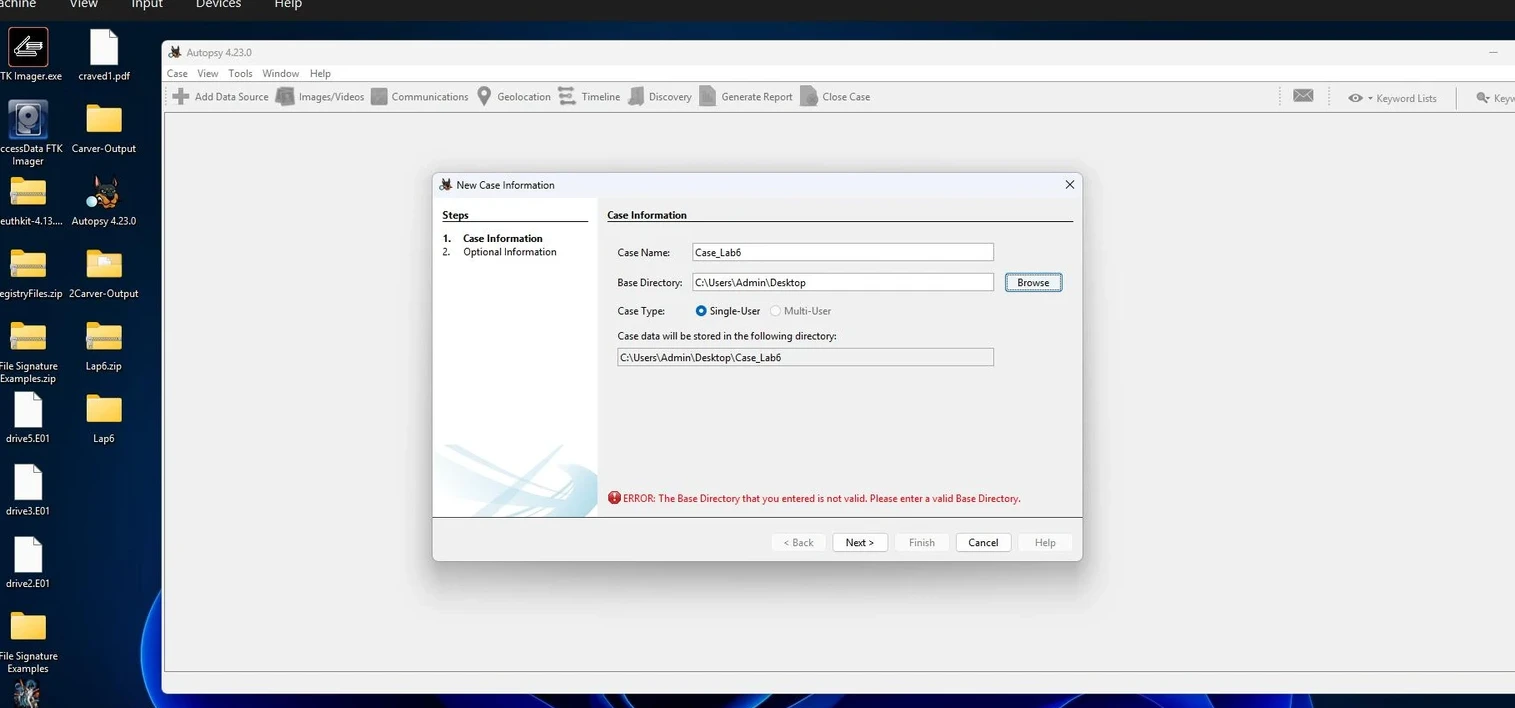
Every Autopsy investigation starts with a case, then one or more data sources. I created Case_Lab6 and added drive2.E01:
 Creating a new case in Autopsy
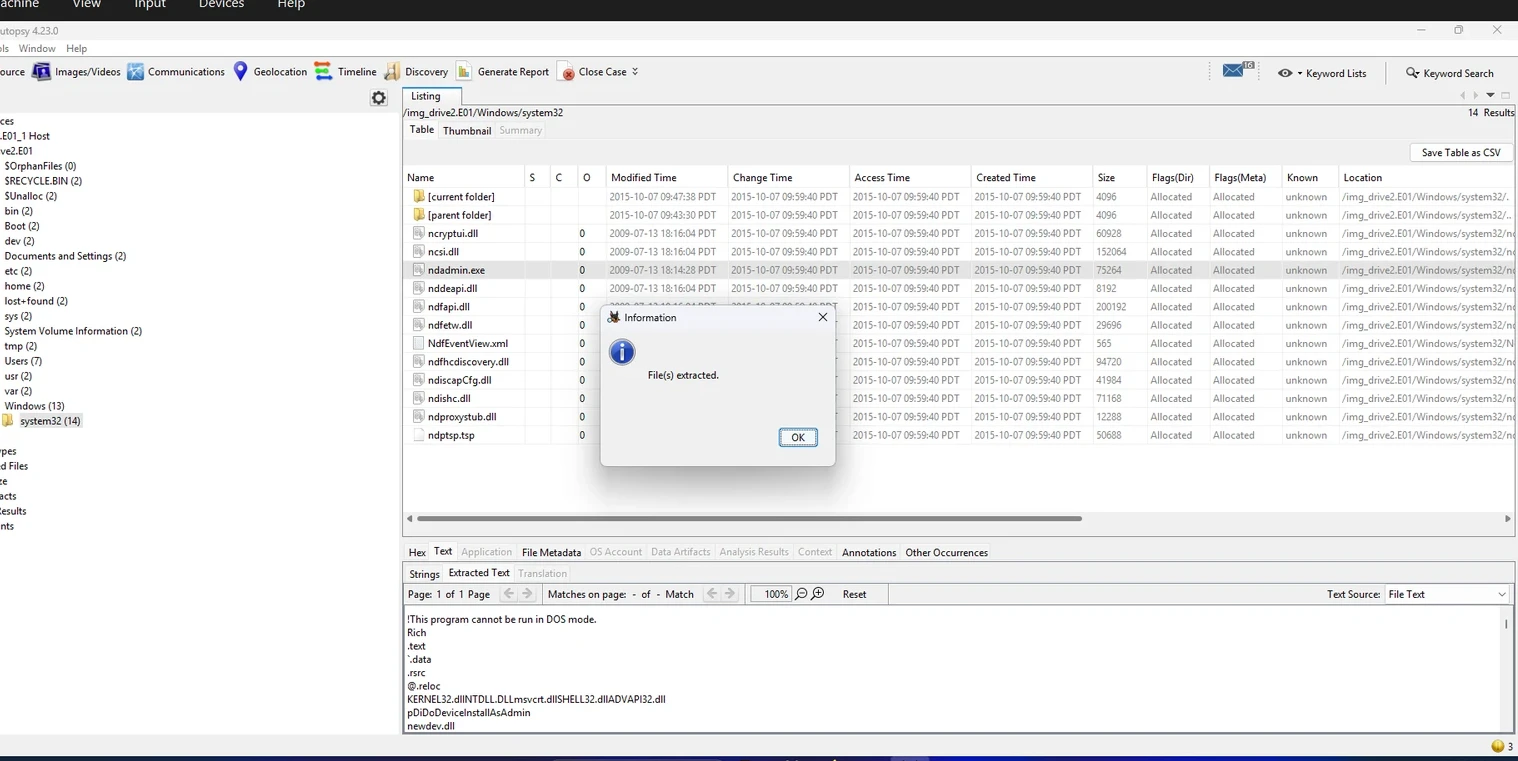
After ingest, the Tree Viewer lets you browse the file system like Explorer. Under /Windows/system32 I located nsadmin.exe and pulled it out with Extract File(s):
nsadmin.exe extracted from /Windows/system32 in the image
Extracted files are copies — the evidence image itself is never modified.
Step 2: Finding Key Evidence
The second image, drive11.E01, belonged to a user jsmith. After ingest, I used three different ways to find what mattered.
Keyword search
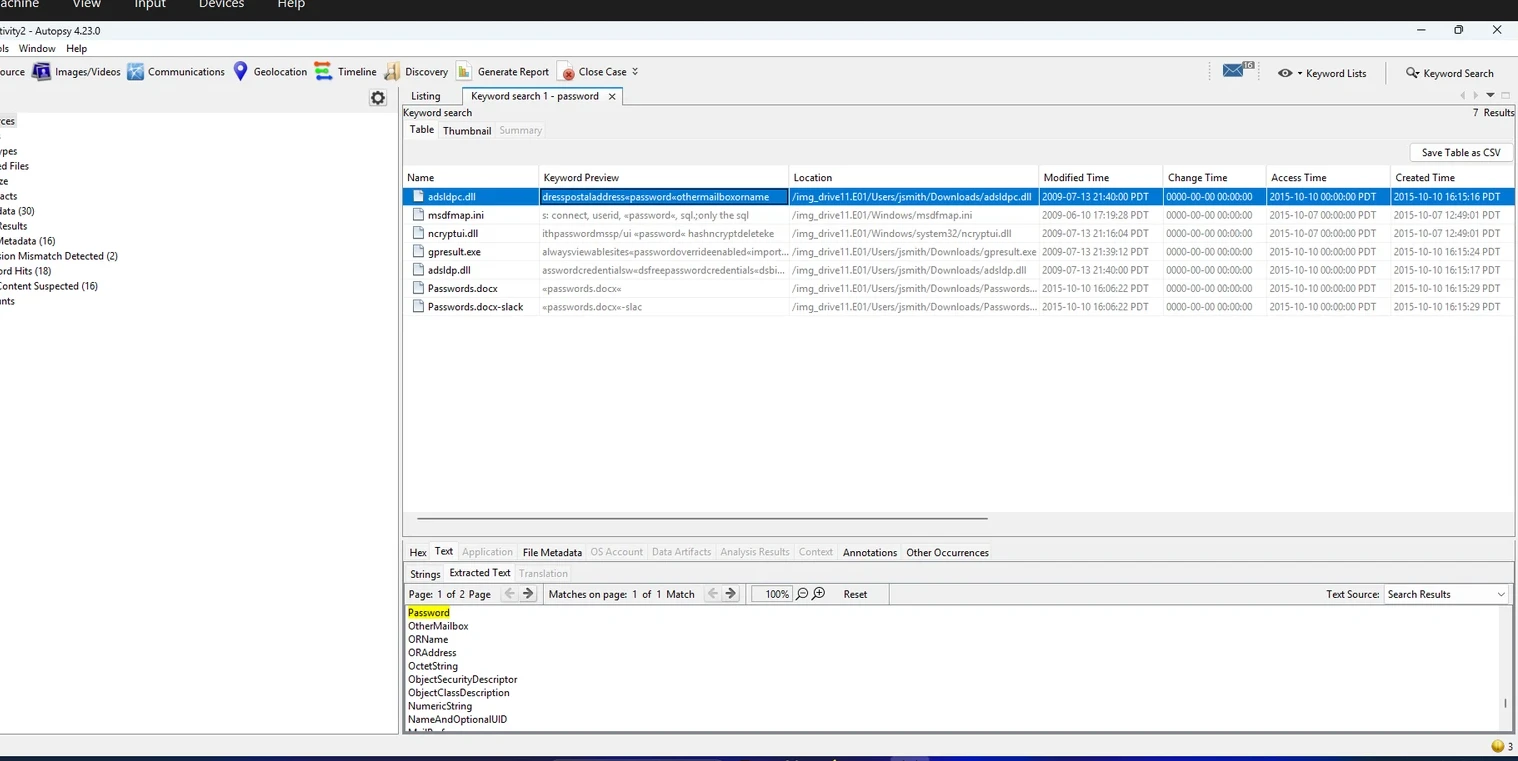
Autopsy indexes the text of every file during ingest. Searching for password returned 7 hits, including files in C:\Users\jsmith\Downloads, with the matches highlighted in the Indexed Text viewer:
 7 results for “password”, with the matching text shown below
Regular expression search
Autopsy’s built-in URL keyword list is a regex that matches web addresses anywhere in the data. It found 17 URLs:
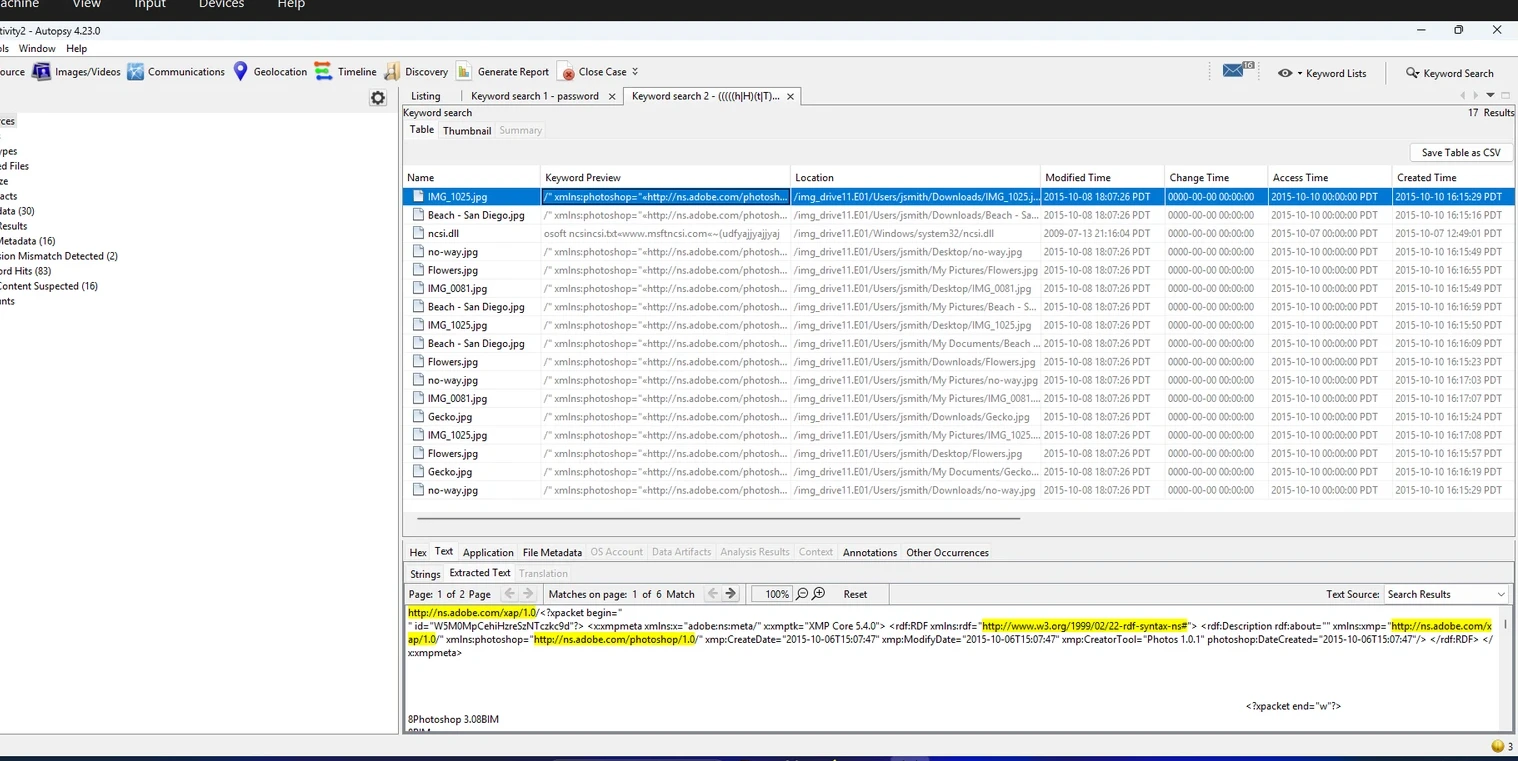 17 URL hits — mostly metadata namespaces embedded inside image files
Most of these turned out to be Adobe XMP / Photoshop and W3C RDF namespace URLs embedded in image metadata — not browsing activity. Regex searches cast a wide net, so hits always need triage before they mean anything.
Browsing the user profile by file type
Going through jsmith’s profile folders showed what kind of material the user kept:
| Location | Found |
|---|---|
My Documents | 6 Word documents — Blank, DesignSpecs, Draft, File, Proposal, Resume |
Downloads | 2 executables — getmac.exe, gpresult.exe |
Desktop | 4 spreadsheets — Forecasts, Salaries, Workbook1, Workbook2 |
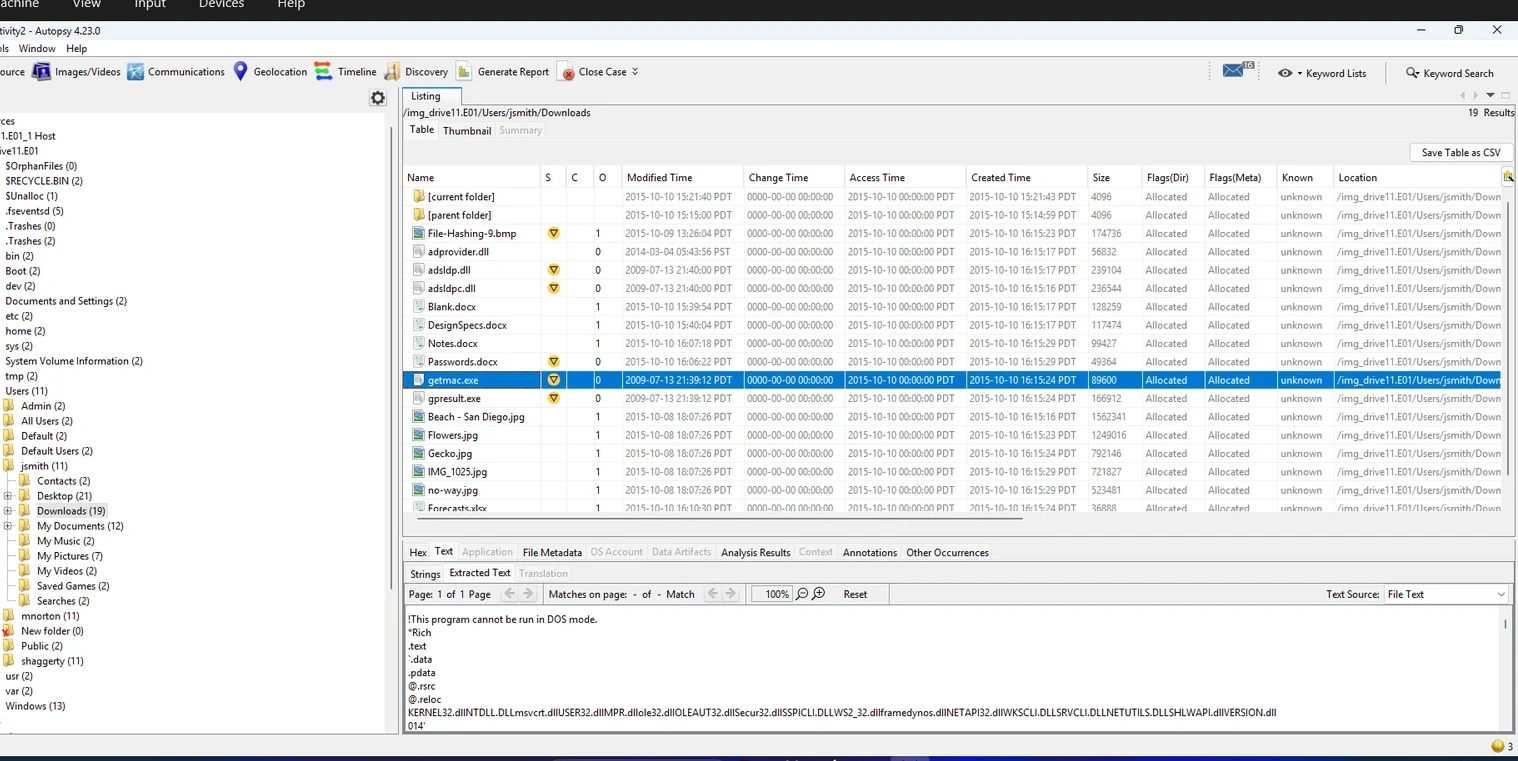 Word documents in
C:\Users\jsmith\My Documents
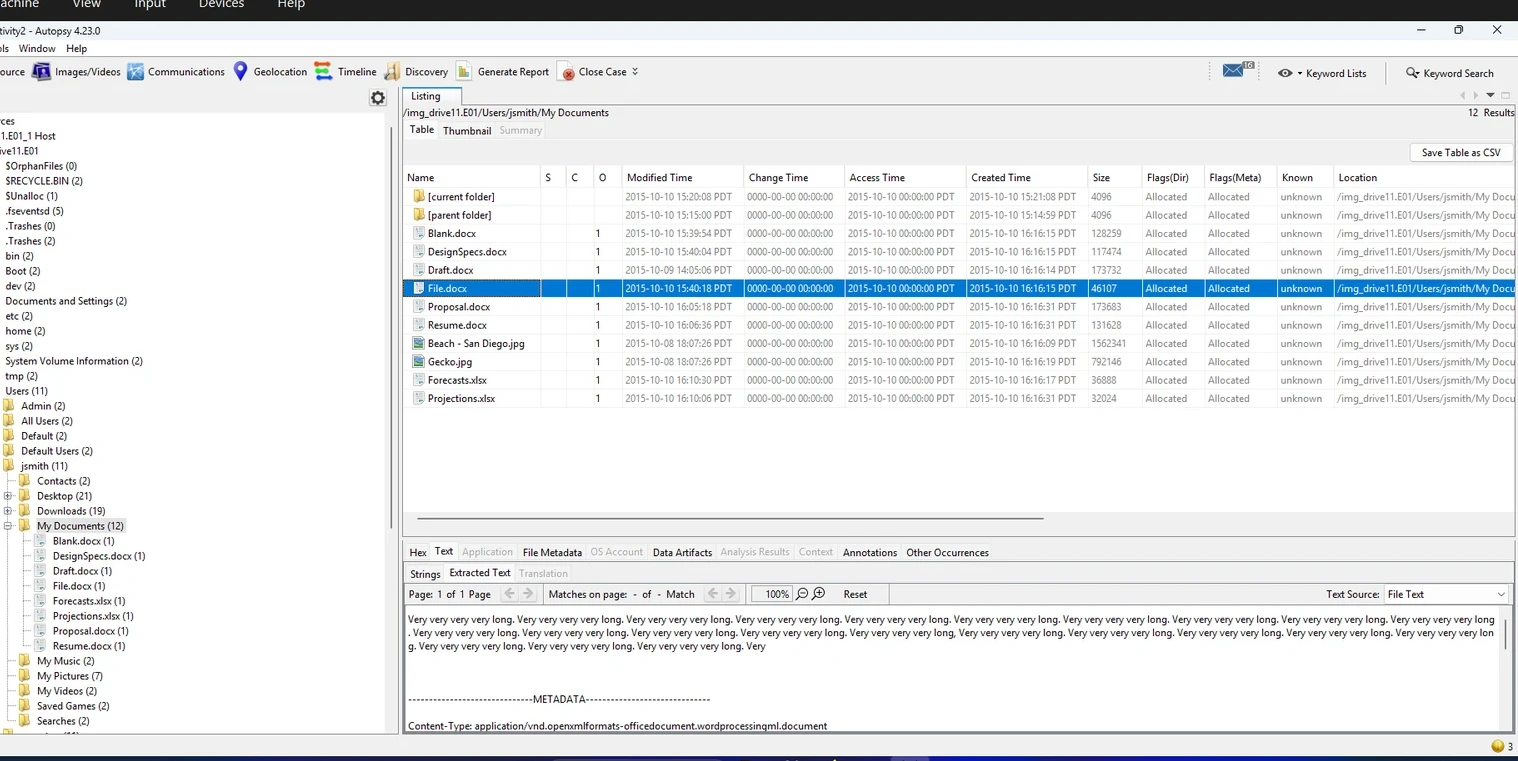
getmac.exe and gpresult.exe in Downloads
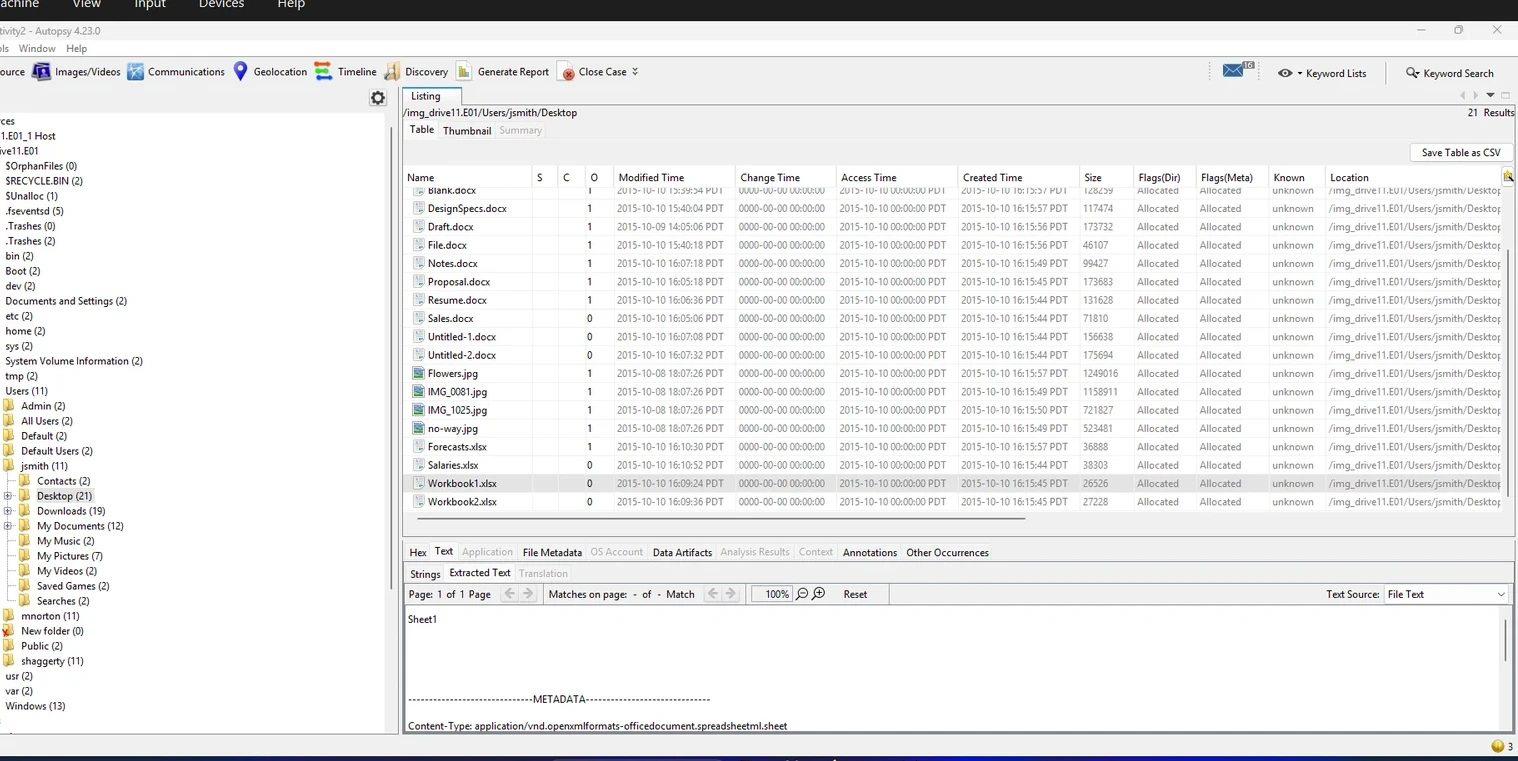 Spreadsheets on the Desktop, including
Salaries.xlsx
getmac and gpresult are legitimate Windows utilities — but copies sitting in a user’s Downloads folder are unusual, and both are reconnaissance tools (MAC addresses, applied group policy). Combined with a Salaries.xlsx on the desktop, that’s the kind of pattern worth a closer look.
Step 3: Hash Set Matching
Hash sets let Autopsy flag known files automatically — known-bad (malware, contraband) or known-good (to filter out OS files). I built a custom set from a text file of MD5 values, imported and indexed it in Autopsy, then ran the Hash Lookup ingest module on drive4.E01.
3 files matched, listed under Analysis Results → Hashset Hits:
| File | MD5 |
|---|---|
/Windows/HelpPane.exe | cd47548a52b02d254bf6d7f7a5f2bfd3 |
/Windows/fveupdate.exe | 92bb2e9aa28542c685c59efcbac2490b |
/Windows/hh.exe | 3d0b9ea79bf1f828324447d84aa9dce2 |
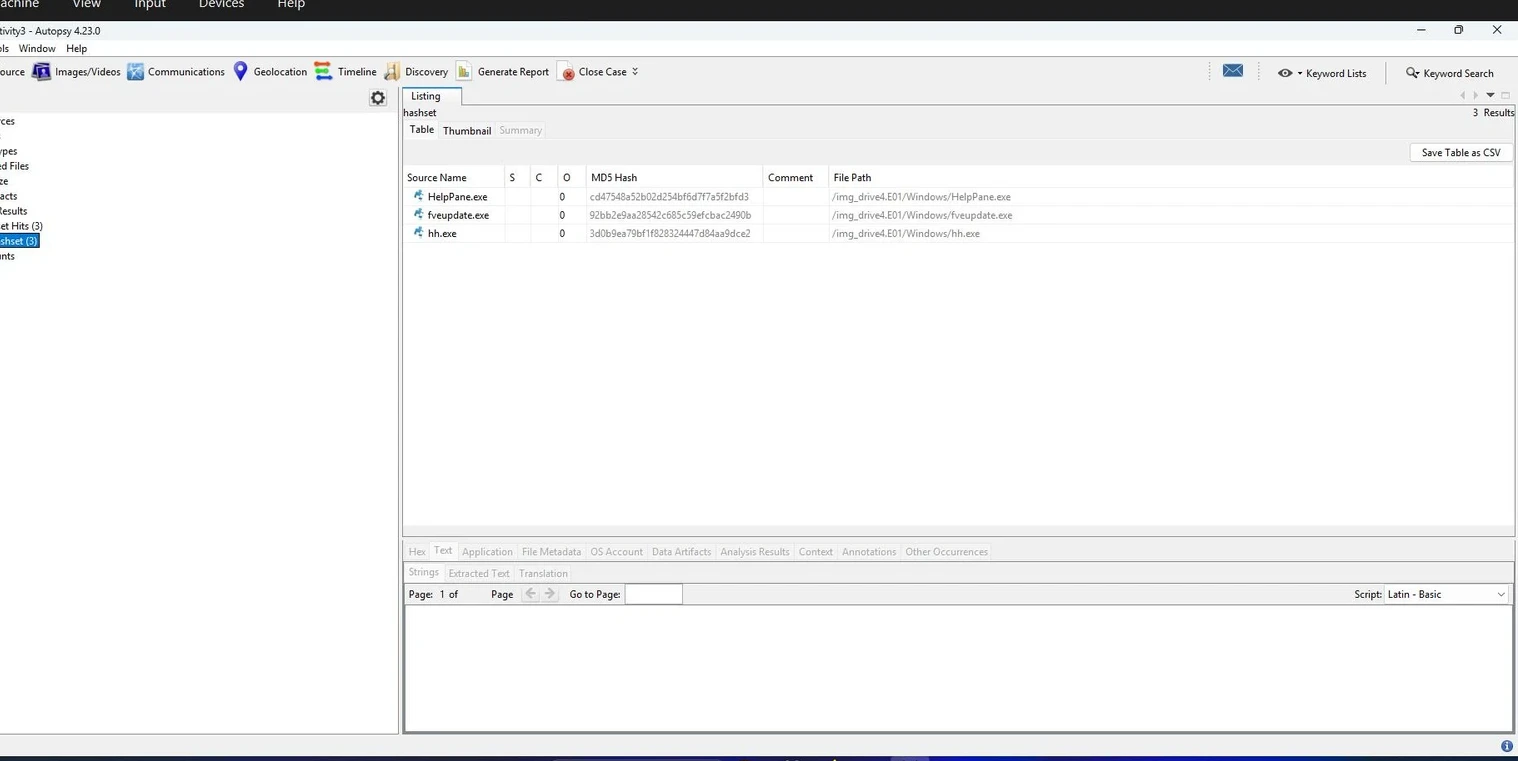 Three files in the image matched the imported hash set
Because matching is done on content, a renamed or moved copy is still caught — the same property from the first post, now applied across an entire disk.
Step 4: Office Document Metadata
Modern Office files (.docx, .pptx, .xlsx) are ZIP archives full of XML. Renaming one to .zip and opening docProps/core.xml shows its properties directly — without launching Word, which could itself change the metadata.
Word document
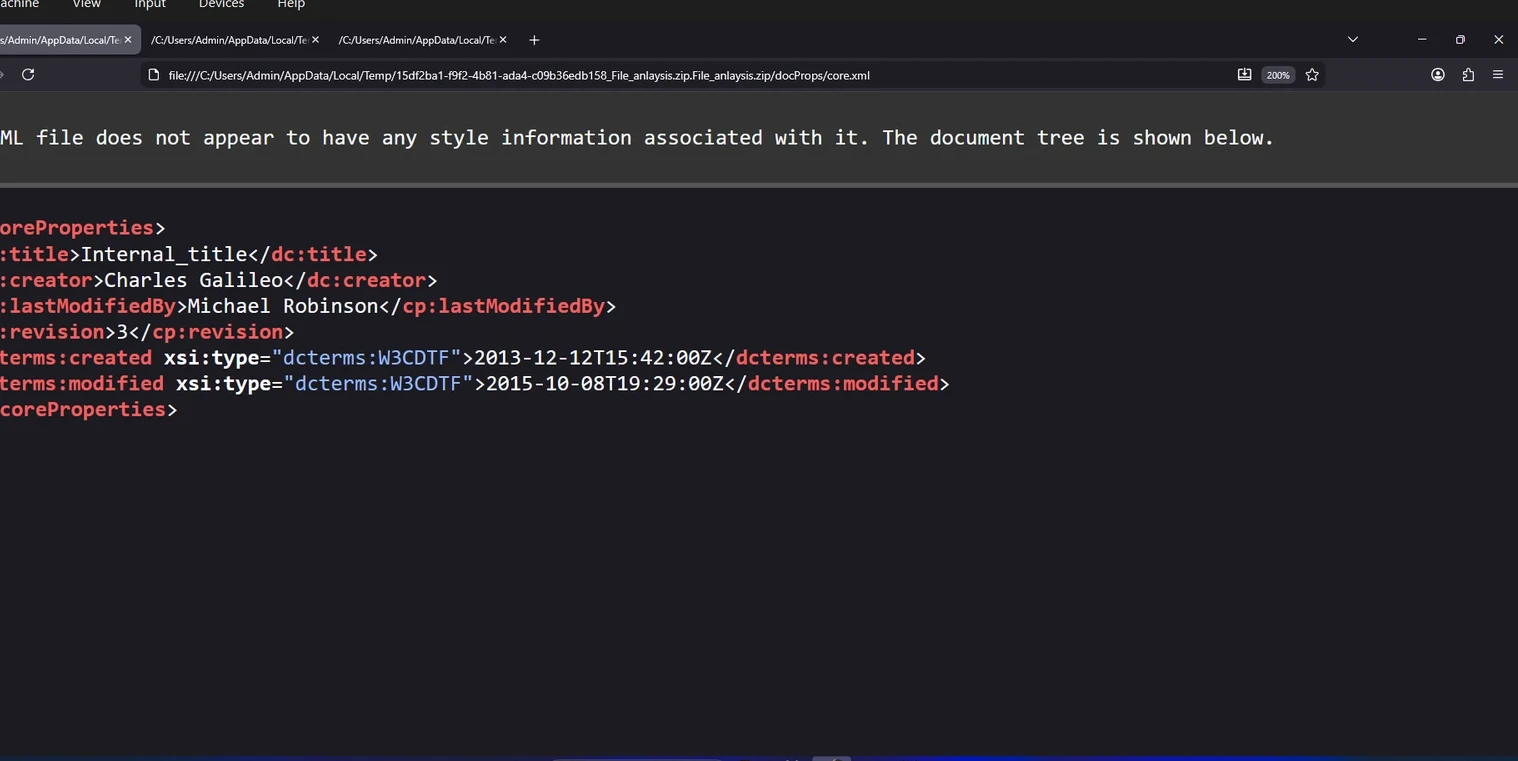
core.xml from the Word document
| Field | Value |
|---|---|
| Title | Internal_title |
| Created by | Charles Galileo |
| Last modified by | Michael Robinson |
| Revision | 3 |
| Created | 2013-12-12 15:42 UTC |
| Last modified | 2015-10-08 19:29 UTC |
PowerPoint presentation
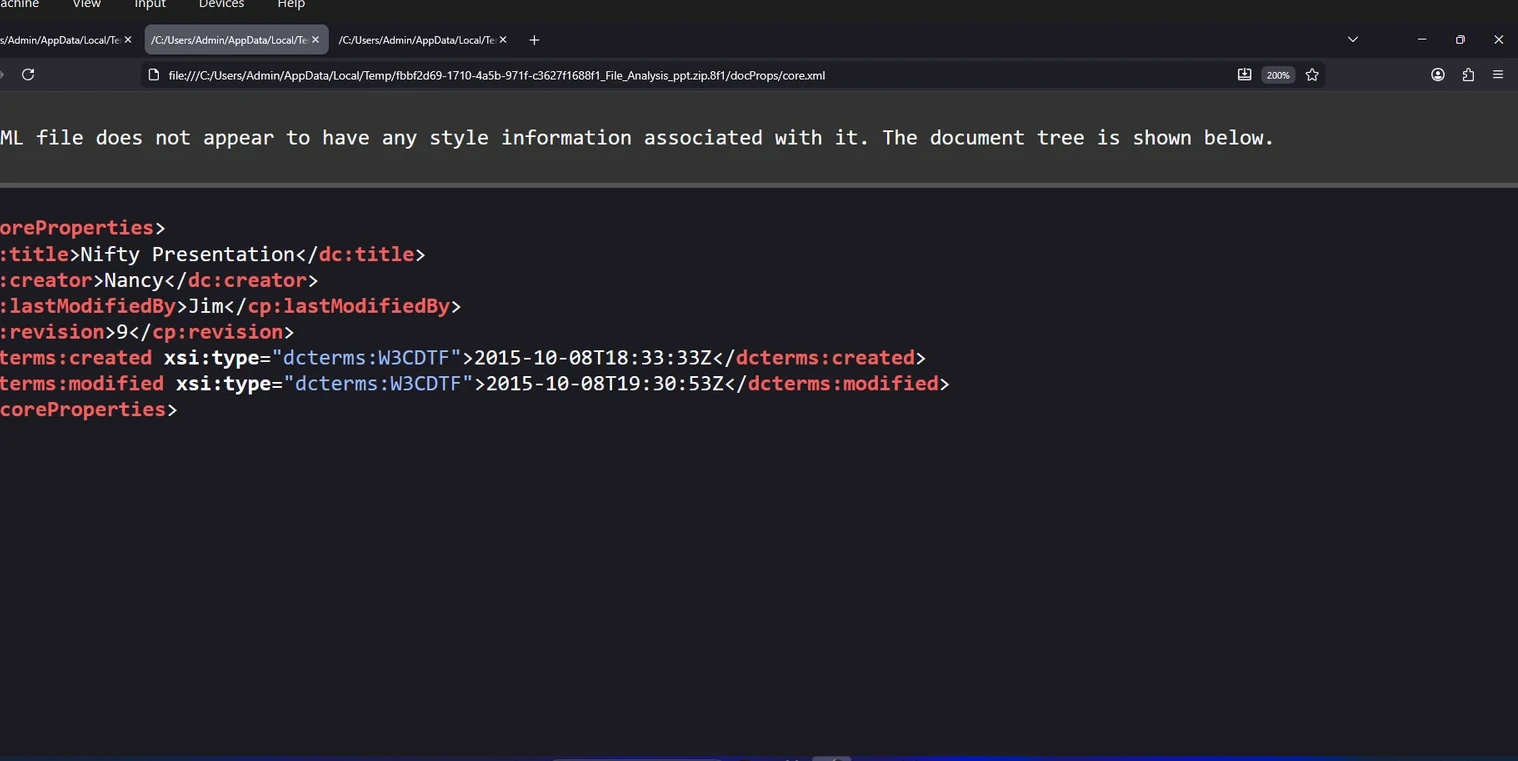
core.xml from the PowerPoint presentation
| Field | Value |
|---|---|
| Title | Nifty Presentation |
| Created by | Nancy |
| Last modified by | Jim |
| Revision | 9 |
| Created | 2015-10-08 18:33 UTC |
| Last modified | 2015-10-08 19:30 UTC |
Excel spreadsheet
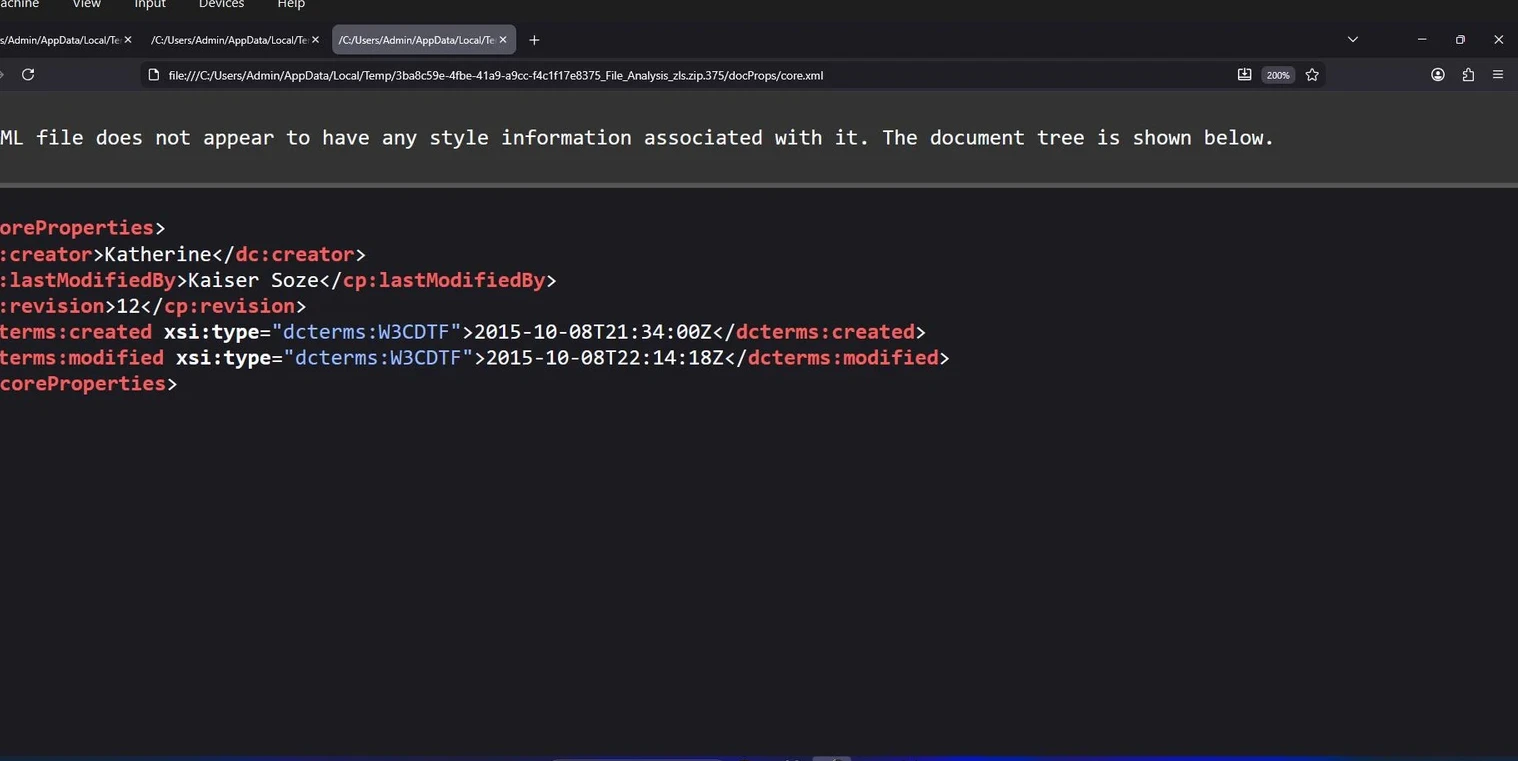
core.xml from the Excel spreadsheet
| Field | Value |
|---|---|
| Created by | Katherine |
| Last modified by | Kaiser Soze |
| Revision | 12 |
| Created | 2015-10-08 21:34 UTC |
| Last modified | 2015-10-08 22:14 UTC |
These fields come from the Office account name on whatever machine saved the file, so they can be wrong or deliberately set — but they’re often the quickest way to see that a document passed through more than one person’s hands.
The
revisionfield counts saves, not meaningful edits — 12 revisions means the file was saved 12 times, not changed in 12 places.
Conclusion
Autopsy turned three raw images into searchable cases: a file pulled out of system32, a user profile with salary data and recon tools in Downloads, and known files flagged automatically by hash. Office metadata then added the human side — who created a document and who touched it last.
Key takeaways:
- Ingest once, search many ways — keywords, regex, and file types each surface different evidence.
- Regex hits need triage; most URL matches here were image metadata, not browsing.
- Hash sets scale content matching to whole disks, catching renamed files.
- Read Office metadata from
core.xmlrather than opening documents, so nothing on the evidence copy changes.
Digital Forensics Labs series
- Evidence Acquisition: Write Blocking, Imaging & RAM Capture
- File Systems, Offline Registry & File Signatures
- File Carving: Recovering a JPEG & PDF from Unallocated Space
- Autopsy Investigations & Office Document Metadata (you are here)
- Browser & Email Artifacts: Chrome, Firefox & Mail Headers